
Documentation Library
Uploads and duplicates
Add audio files from your browser, and find and merge songs that appear more than once.
You can add music to Rainy by uploading files from your browser. Rainy checks each new file against the songs already on the server, so you do not end up with two copies of the same recording. If you do end up with duplicates, the Jobs page finds them and lets you merge them into one.
Upload audio files
Any signed-in account can upload.
- Click your name in the top-right corner to open the account menu, then click Import music.
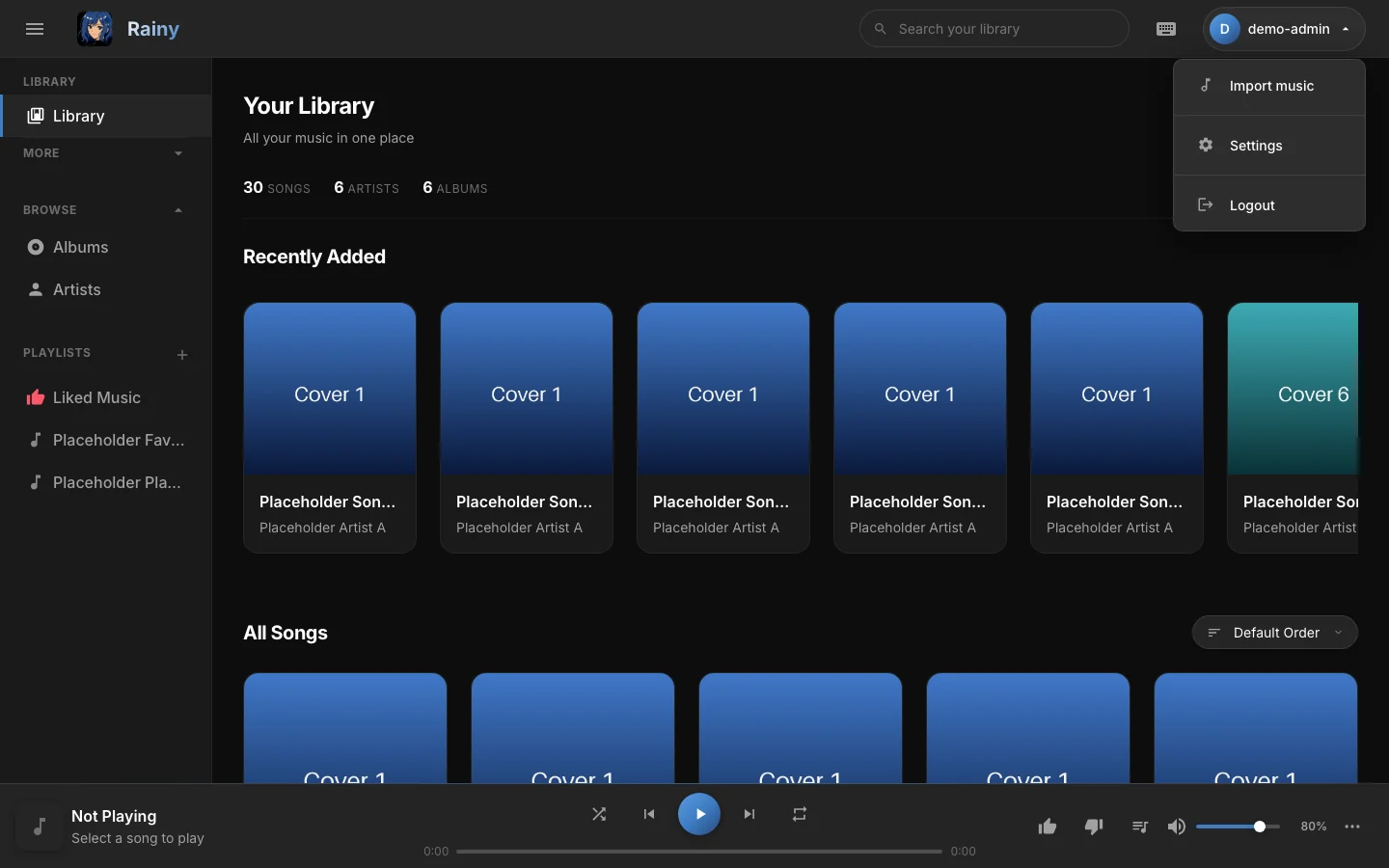
Import music is in the account menu, under your name.
- In the Add Music window, choose Upload Files.
- Drag audio files onto the dropzone, or click browse to pick them.
- Wait for the progress bar. When the upload finishes, the window closes and the Library refreshes.
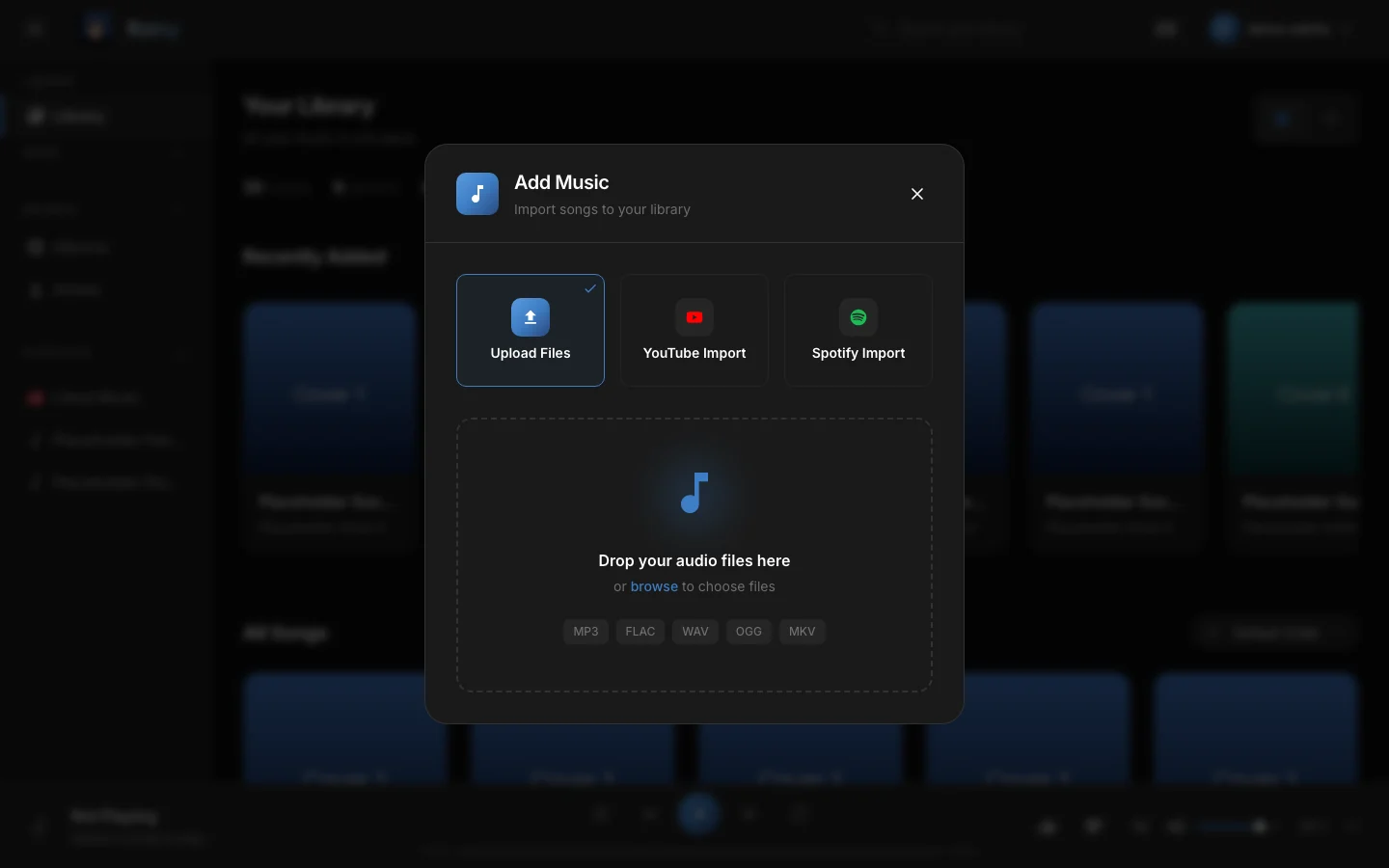
The Upload Files option. Drop files on the dropzone or click browse.
Rainy accepts MP3, FLAC, M4A, WAV, OGG, Opus, AAC, WMA and MKV files. Anything else is skipped without a message, so check the Library if a file is missing.
Uploads are saved in the top level of the music folder under their original name. If another file already uses that name, Rainy adds a number to the new one, such as song_1.mp3. You and administrators can play them straight away. Other accounts see them only after an administrator publishes them to everyone.
If a file with the same name is already in the top level of the music folder, Rainy compares the contents. An identical file is not saved again. If Rainy knows that song, it adds the existing song to your library instead, and the upload counts as a success. A different recording with the same name is saved next to the existing file under a new name, such as song_1.mp3, so both are kept.
How Rainy checks for duplicates
Uploads and imports from YouTube and Spotify are checked against the songs already on the server before they are kept. Rainy uses two checks, in order.
- Exact copy. Rainy compares a SHA-256 hash of the file's bytes. A byte-identical file matches, even if it has a different name.
- Same recording. Rainy compares an acoustic fingerprint of the sound. This finds the same song from a different source or encoding, such as a lyric video and an official video, or the same track at another bitrate. It also requires the two recordings to differ in length by no more than 15 seconds.
When a check finds a match, Rainy deletes the new file and its entry, and gives your account access to the existing song. The upload still counts as a success.
The sound check needs thefpcalctool from the Chromaprint project. The Docker image includes it, so the sound check works there. On a bare install, putfpcalcin Rainy'sbinfolder or on the system path. Rainy does not install it, so the sound check is off until an administrator adds it. The exact-copy check always runs.Note: Songs added by a scan are not compared until an administrator runs
scripts/backfill_fingerprints.pyon the server. It is a command-line script and has no button in Rainy.
Find duplicate songs
Duplicate songs are found by title and artist, not by file contents. Rainy ignores capital letters, punctuation and anything inside brackets or parentheses. A song called "Placeholder Song 01 (Remastered)" therefore matches "Placeholder Song 01" by the same artist.
Because text in brackets is ignored, a live version titled "Song (Live)" is grouped with the studio version. Check each group before you merge it.
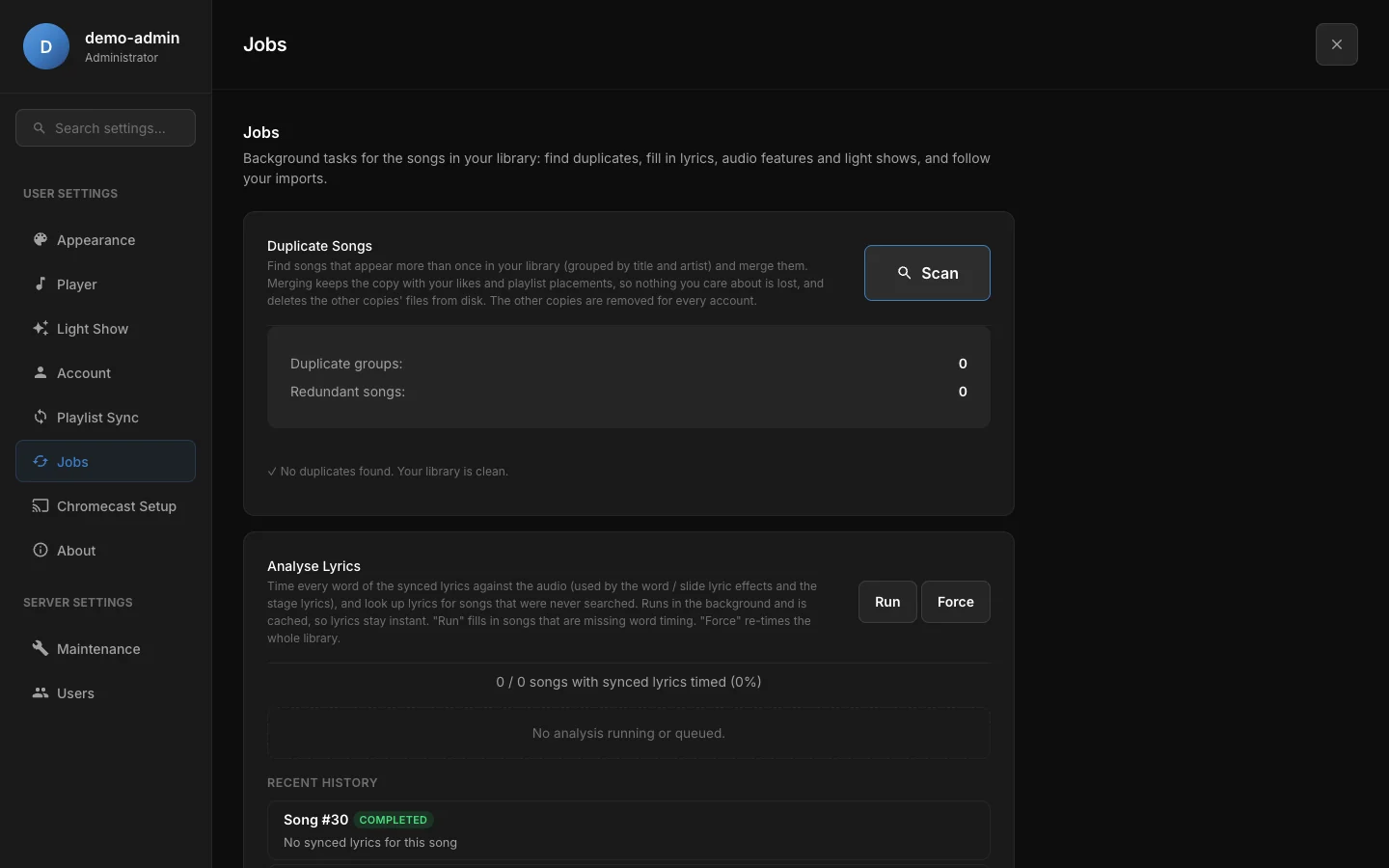
The Duplicate Songs card after a scan. With no duplicates, Rainy says your library is clean.
- Open Settings from the account menu and go to Jobs.
- In the Duplicate Songs card, click Scan.
- Read the Duplicate groups and Redundant songs counts.
- In each group, the suggested copy is marked and selected. To keep a different copy, select it instead.
- Click Merge into selected and confirm.
Each copy shows badges for its likes, dislikes, playlist places and plays, when it has any, so you can see why it was suggested. Rainy suggests the copy with the most likes, then the one in the most playlists, then the one played most.
Merging moves likes, ratings, playlist places, play history, tags and access to the copy you keep. Lyrics, light show and audio analysis move too, unless the kept copy already has its own. Each playlist still holds the song only once. The other copies are then removed, and their audio files are deleted from disk.
Merging deletes files from the music folder. This cannot be undone.
To merge every group in one step, click Merge all automatically. Rainy merges each group you are allowed to merge into its suggested copy. The button appears only when at least one group can be merged.
Who can merge
- Administrators can merge any group. Because the other copies are deleted for everyone, every account loses them.
- Other accounts see duplicates among the songs in their own library. A group can be merged only when every copy is yours alone: a song you imported that no other account, administrators included, can see. Uploads are visible to administrators, so they do not count as yours alone. Otherwise the group says that other accounts share some copies, and only an administrator can merge them.