
Documentation Library
Scanning the library
Find new, changed and removed music files and bring the Rainy library up to date.
Rainy keeps a database of the songs in your music folder. A scan reads that folder and updates the database to match it: new files are added, changed files are re-read, and files that no longer exist are removed. Scans are run by an administrator. Other accounts do not see the scan controls.
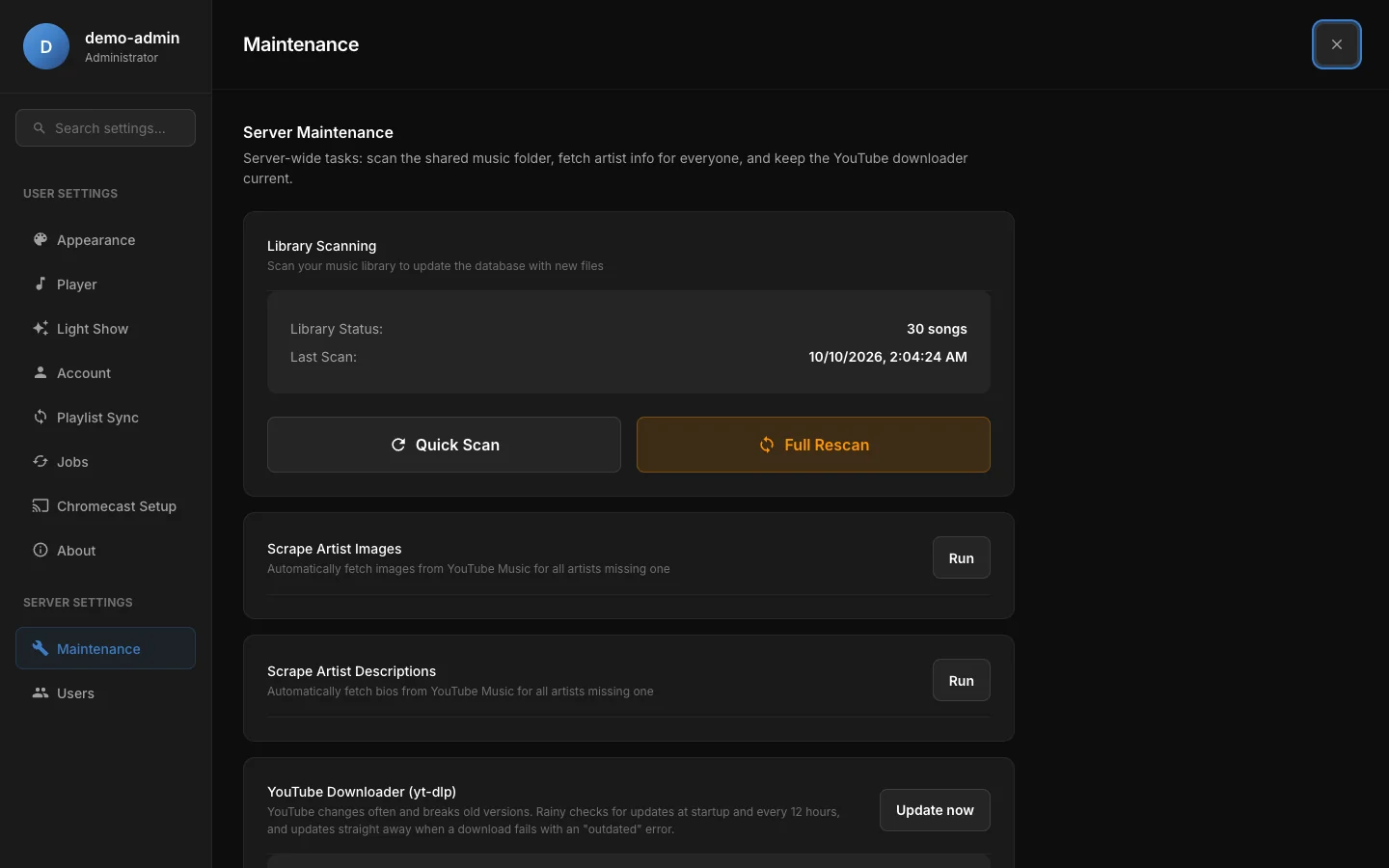
Library Scanning in Settings, under Maintenance. The count and last scan time update after each run.
Quick scan and full rescan
Rainy offers two kinds of scan. Both add new files and remove songs whose files are gone. They differ in which files they read.
| Quick Scan | Full Rescan | |
|---|---|---|
| Files it reads | Only new files, and files whose modified date has changed since the last scan | Every file in the folder |
| Good for | Picking up files you have copied in | Refreshing tags after you edit many files at once |
| Speed | Fast, even on large libraries | Slow, because every file is opened again |
If you edited a file's tags and its modified date did not change, a Quick Scan will not see the new tags. Run a Full Rescan instead.
To run a scan:
- Open Settings from the account menu and go to Maintenance.
- Check Library Status and Last Scan in the Library Scanning card.
- Click Quick Scan, or click Full Rescan.
- Wait while the button is disabled and the progress message is shown.
- Read the result: files found, added, updated and removed.
Only one scan can run at a time. If a scan is already running, Rainy reports that instead of starting another.Note: Rescans keep each song's ID. Likes, playlists and history stay attached to a song as long as its file stays at the same path inside the music folder.
Subfolders are scanned too. When a scan re-reads a file whose tags come back empty, Rainy keeps the title, artist, album, genre and year it already has for that song.
Supported formats
A scan only looks at files with these extensions. Other files in the folder are ignored.
| Format | Extension |
|---|---|
| MP3 | .mp3 |
| FLAC | .flac |
| WAV | .wav |
| OGG Vorbis | .ogg |
| Opus | .opus |
| MPEG-4 audio | .m4a |
| AAC | .aac |
| Windows Media Audio | .wma |
| Matroska video with audio | .mkv |
MKV files are read with ffmpeg and ffprobe, so the server needs ffmpeg installed. The Docker setup includes it. A bare install needs it on the system path. See Install.
Cover art from your files
When a scan finds an embedded picture in a file, Rainy saves it as the song's cover. Covers are read from MP3, WAV, FLAC, M4A and AAC, OGG, Opus and MKV files. WMA files are scanned for their tags, but their embedded pictures are not read.
Rainy saves each cover in a covers folder inside your music folder:
- The file name is a hash of the song's path, so each song has its own cover.
- The extension follows the picture type:
.jpg,.png,.webpor.gif. Anything else is saved as.jpg. - If the same picture is already saved, Rainy leaves the existing file alone.
Rainy serves covers only from that covers folder. Keep it in place. Songs without an embedded picture show a placeholder. To change a song's tags or cover after a scan, see Metadata and covers.
Moving and renaming files
Rainy identifies a song by its path inside the music folder. If you move or rename a file, the next scan treats it as a new song and removes the old entry. The old entry's likes, playlist places and play history go with it.
Rename or move files only when you are happy for the old song's ratings, playlist places and history to be lost. To keep one of two copies of a song, use duplicates instead.
Stopped scans
If Rainy stops in the middle of a scan, for example during a restart, the scan can stay marked as running. Later scans then report that a scan is already in progress.