
Documentation Playlists and discovery
Playlists
Create, edit, share and export playlists, and see what each person on a playlist can do.
Playlists are named lists of songs from your library. Every playlist belongs to the account that created it, so your playlists stay separate from everyone else's on the same server. You can share a playlist with friends, who can then either help you edit it or only listen to it.
This page covers everyday playlist work. To keep a playlist in step with a YouTube Music or Spotify playlist, see Playlist sync.
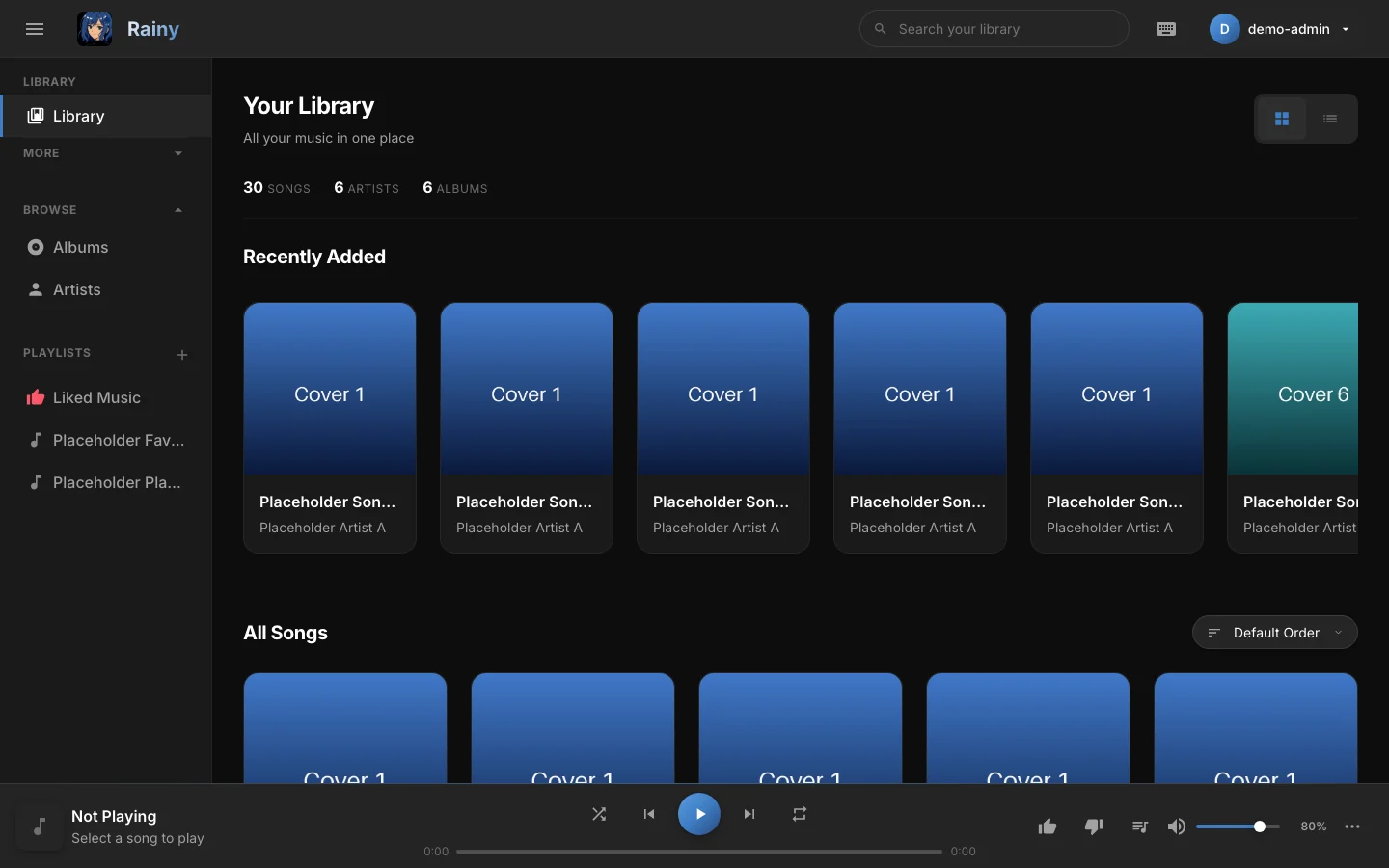
Your playlists appear in the sidebar under Playlists.
Create a playlist
- Click the + button beside Playlists in the sidebar.
- Type a name.
- Pick an icon and a colour. The icons include Music Note, Headphones, Heart, Star, Fire, Vinyl and Guitar, and there are eight colour presets.
- Click Create Playlist.
A new playlist starts empty and shows its icon until you add a cover.
Add and remove songs
To add a song, right-click it or open its song menu, choose Add to Playlist, and pick the playlist. Liked Music is left out of that list. Use the Like button to add a song there instead (see Likes and dislikes).
To remove a song, open the playlist, right-click the song and choose Remove from Playlist. This option only appears on playlists you can edit.
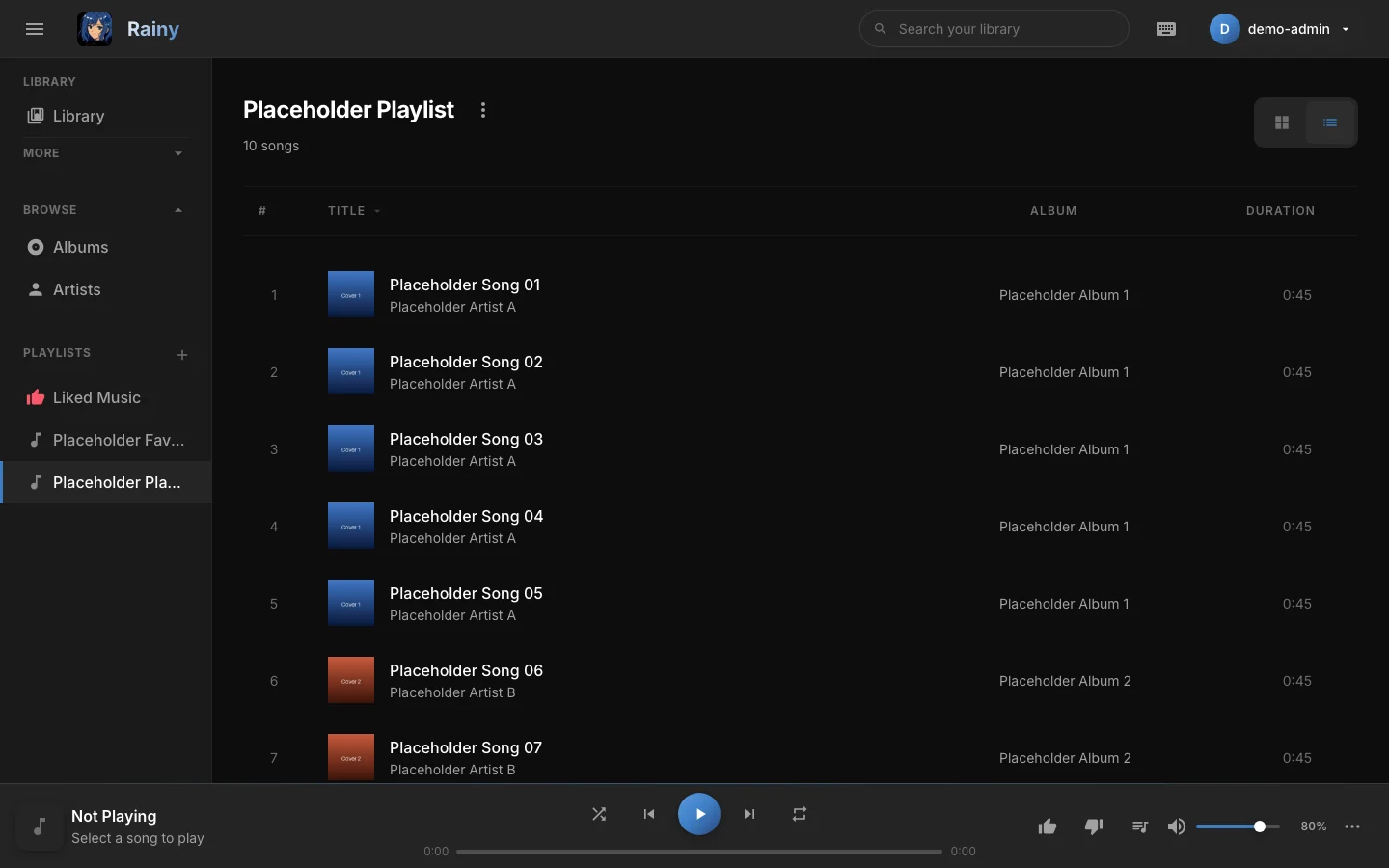
A playlist in list view. Drag rows to change the order.
Reorder songs
Reordering works in list view. Switch to list view with the view buttons above the songs, then drag a row to its new position. Rainy saves the order when you drop the row and shows a "Playlist order saved" message. Viewers see read-only rows and cannot reorder.
Rename, change the icon and regenerate the cover
Open the playlist settings menu (the three-dot button beside the playlist title). It holds Rename, Edit Icon and Regenerate Cover. The Edit Icon dialog offers the same icons and colours as when you create a playlist.
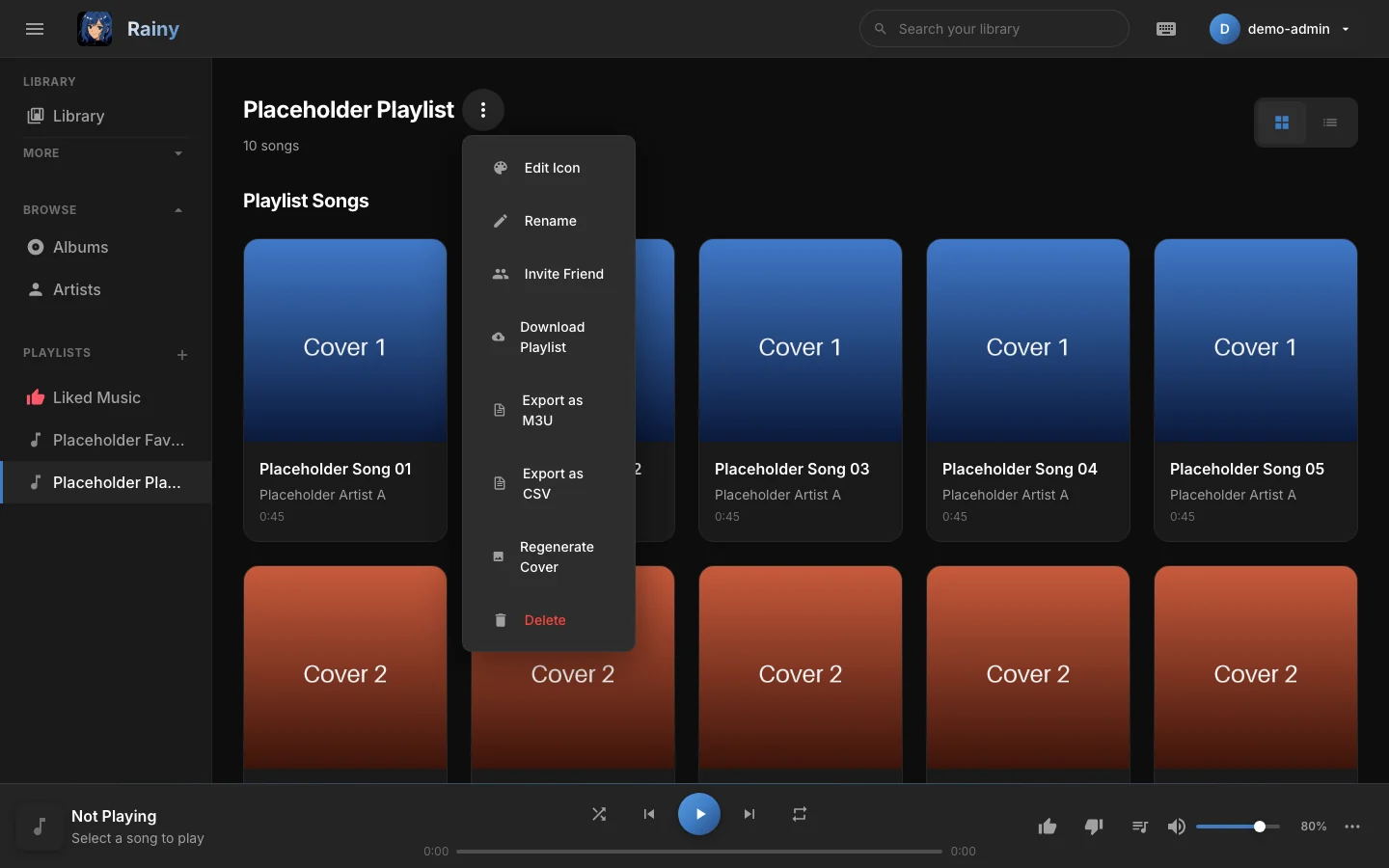
The settings menu holds the editing, sharing, export and delete actions.
A cover is a 2x2 mosaic built from up to four covers of songs in the playlist, chosen at random. Rainy keeps the cover until you choose Regenerate Cover, which builds a new mosaic from a fresh random pick. Playlists created by a YouTube or Spotify import get a mosaic when the import finishes. You cannot upload your own cover image.
Download and export
The settings menu offers three ways to take a playlist out of Rainy:
| Option | What you get |
|---|---|
| Download Playlist | A ZIP file of the audio files. Files sit at the top level of the ZIP and are named by file name only. |
| Export as M3U | A playlist file listing each song's artist, title and full file path on the Rainy server. |
| Export as CSV | A spreadsheet with Title, Artist, Album, Duration, Genre, Year and File Path. |
The M3U file uses paths from the server's music folder, so it is most useful on the machine that runs Rainy.
Songs you do not have access to are left out of downloads and exports. If no songs are left, Rainy reports that the playlist is empty.
Share with friends
Only the owner can share a playlist, and only with people on their friends list. See Friends for how to add friends first.
- Open the playlist, open the settings menu and choose Invite Friend.
- Choose a role for the invite: Admin can edit songs, and Viewer can only view them. Admin is the default.
- Click Invite beside a friend.
Your friend sees the invite under Playlist Invites on the Friends page and accepts it there. Accepted playlists appear in their library with a shared badge. In the same window you can change a collaborator's role, or click Revoke to remove their access, including while an invite is still pending.
A collaborator who no longer wants a shared playlist can open it, choose Leave Playlist and confirm. The playlist stays in the owner's account.
Everyone with access to a shared playlist can hear all of its songs, even songs they could not play otherwise.
Who can do what
| Action | Owner | Admin | Viewer |
|---|---|---|---|
| Play, download and export | Yes | Yes | Yes |
| Add, remove and reorder songs | Yes | Yes | No |
| Rename, change the icon, regenerate the cover | Yes | Yes | No |
| Invite friends, change roles, revoke access | Yes | No | No |
| Set up a playlist sync | Yes | No | No |
| Delete the playlist | Yes | No | No |
| Leave the playlist | No | Yes | Yes |
Playlists created before accounts were separated have no owner. Any account can edit them, but only an administrator can delete them.
Delete a playlist
Owners delete a playlist from the settings menu with Delete. The playlist is removed for everyone it was shared with. The songs stay in your library.