
Documentation Stage and devices
Light show environments
Choose the kind of light show you want, and install new ones on your server as packages.
An environment is a kind of light show: one way of staging a song. Rainy analyses each song once, and every environment follows that same analysis. What changes is what you see: a concert rig, a 3D world, something else entirely. Each environment also stages the lyrics its own way.
Classic comes with Rainy and is always there. Other environments are packages that an administrator installs on the server. Once installed, everyone on that server can pick them.
Choose an environment
- Open Settings > Light Show.
- In the Environment card, click the environment you want. Each one has a picture, a short description, and its version and author.
You can also switch while the show is running: click the cube button in the bar at the top of the show to move on to the next environment. The button only appears when there is more than one to choose from.
Your choice is saved to your account, so it follows you to every device.
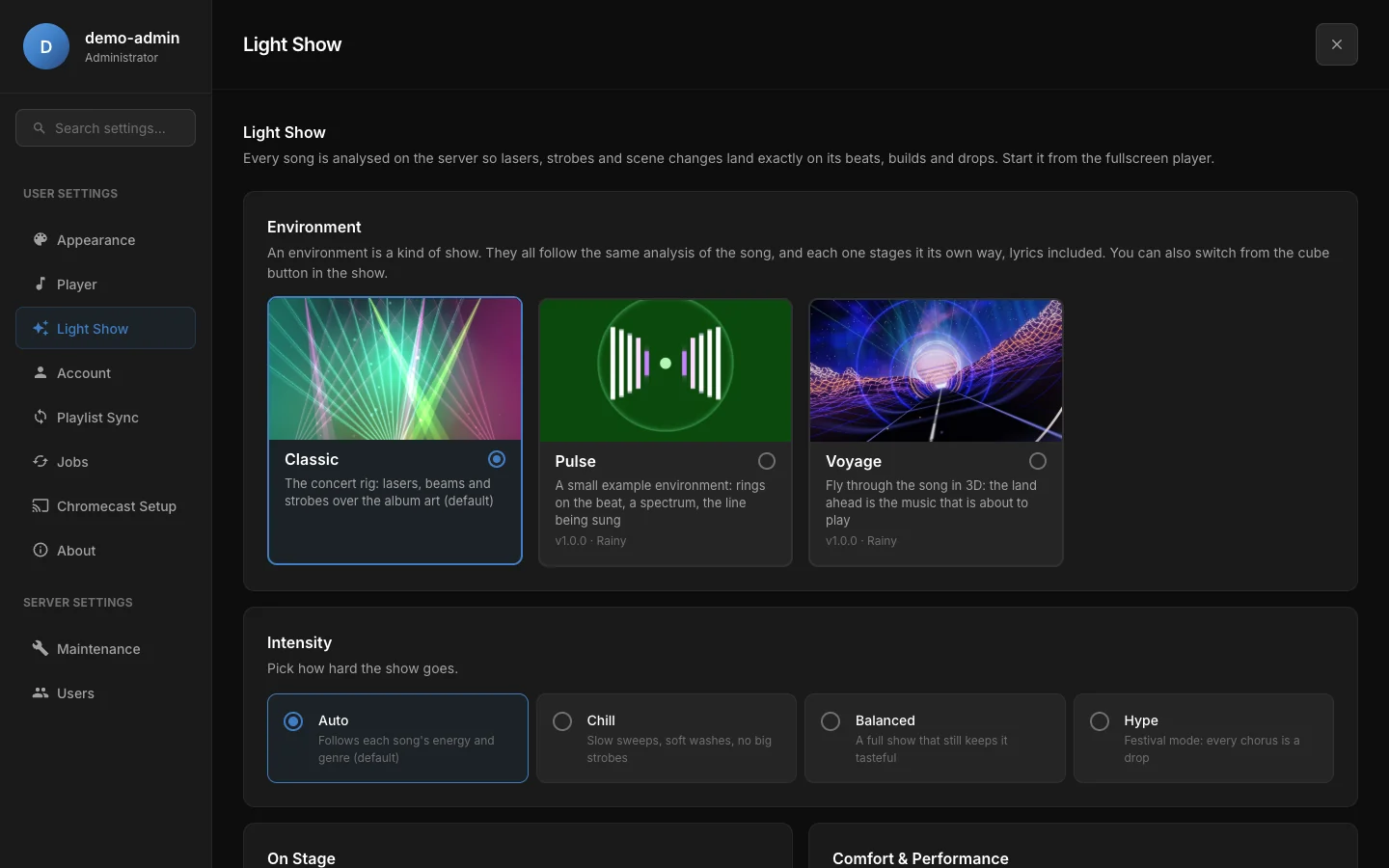
One card per environment. The selected one has the accent border.
An environment can ask for something your device may not have. If it does, its card is greyed out and says what is missing, for example Needs WebGL 2, which this device does not have. Your account keeps its choice, and that device shows Classic.
What an environment changes
Besides what it draws, an environment decides how the fullscreen player is arranged around it.
- A stage environment, like Classic, leaves the player as it is, with the artwork, the controls and the queue, and runs the show behind them.
- An immersive environment, like Voyage, takes the whole screen. The queue folds away, the song and its controls become a small card at the bottom, and all of it dims after a few seconds without moving the pointer. Move the pointer to bring it back. A queue button in the bar at the top shows the queue over the show.
Everything in Settings > Light Show applies to every environment: intensity, lyrics on stage, sync offset, Reduce Flashing and Low Performance Mode.
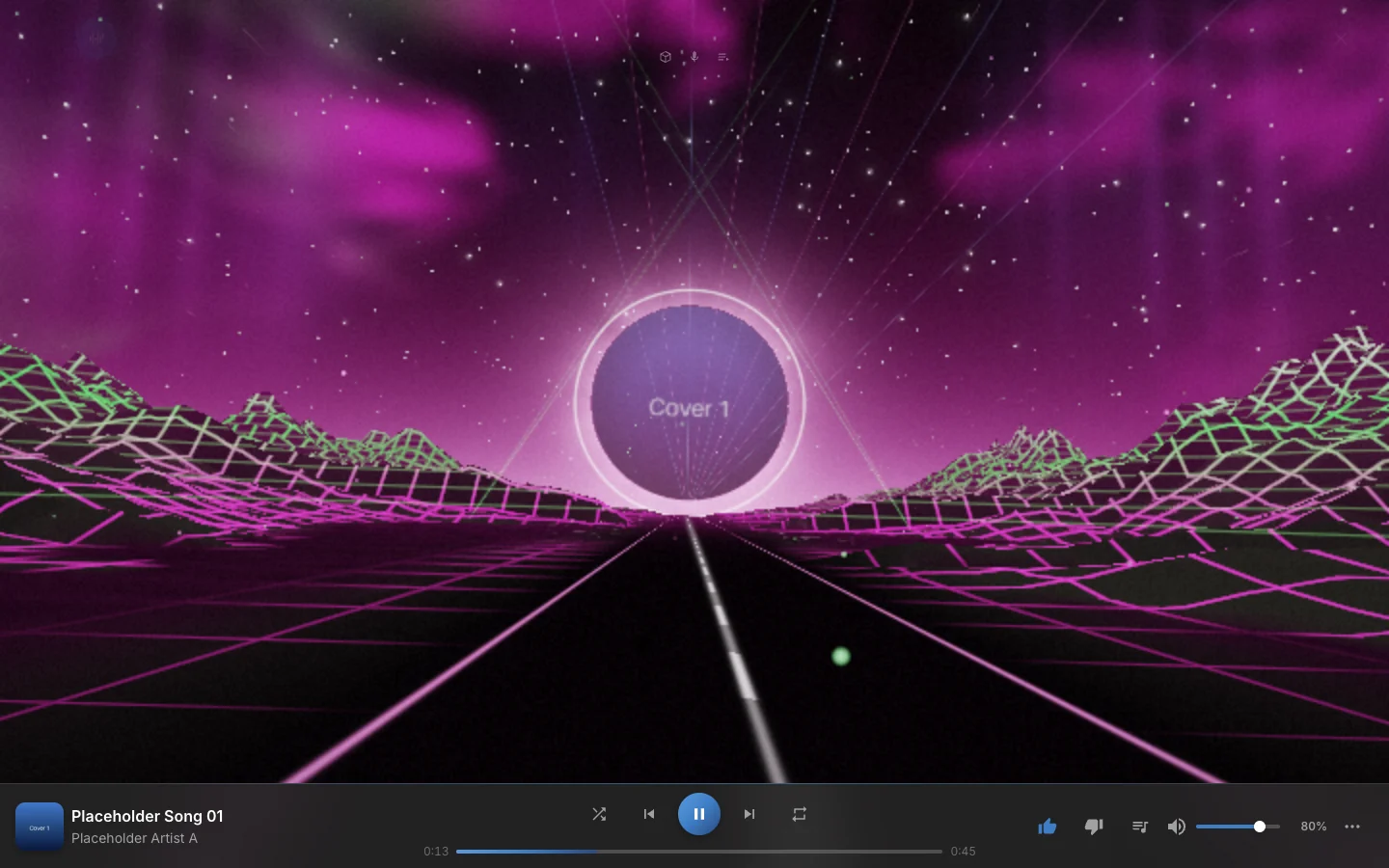
Voyage, an immersive environment: the land on both sides of the road is the song's sound, so what lies ahead is the music that is about to play.
Install an environment
Only administrators can install environments.
An environment is code. It runs in the browser of everyone who uses your server, inside Rainy and with their session. Rainy checks that a package is well formed; it cannot check that it is safe. Only install packages from authors you trust.
- Get the package: a
.zipfile. The Rainy repository has two you can build yourself, described below. - Open Settings > Light Show and scroll to Installed Environments.
- Click Install package (.zip) and choose the file.
- Read the warning and confirm.
The environment appears in the list and in everyone's Environment card. Other people see it the next time they open Rainy.
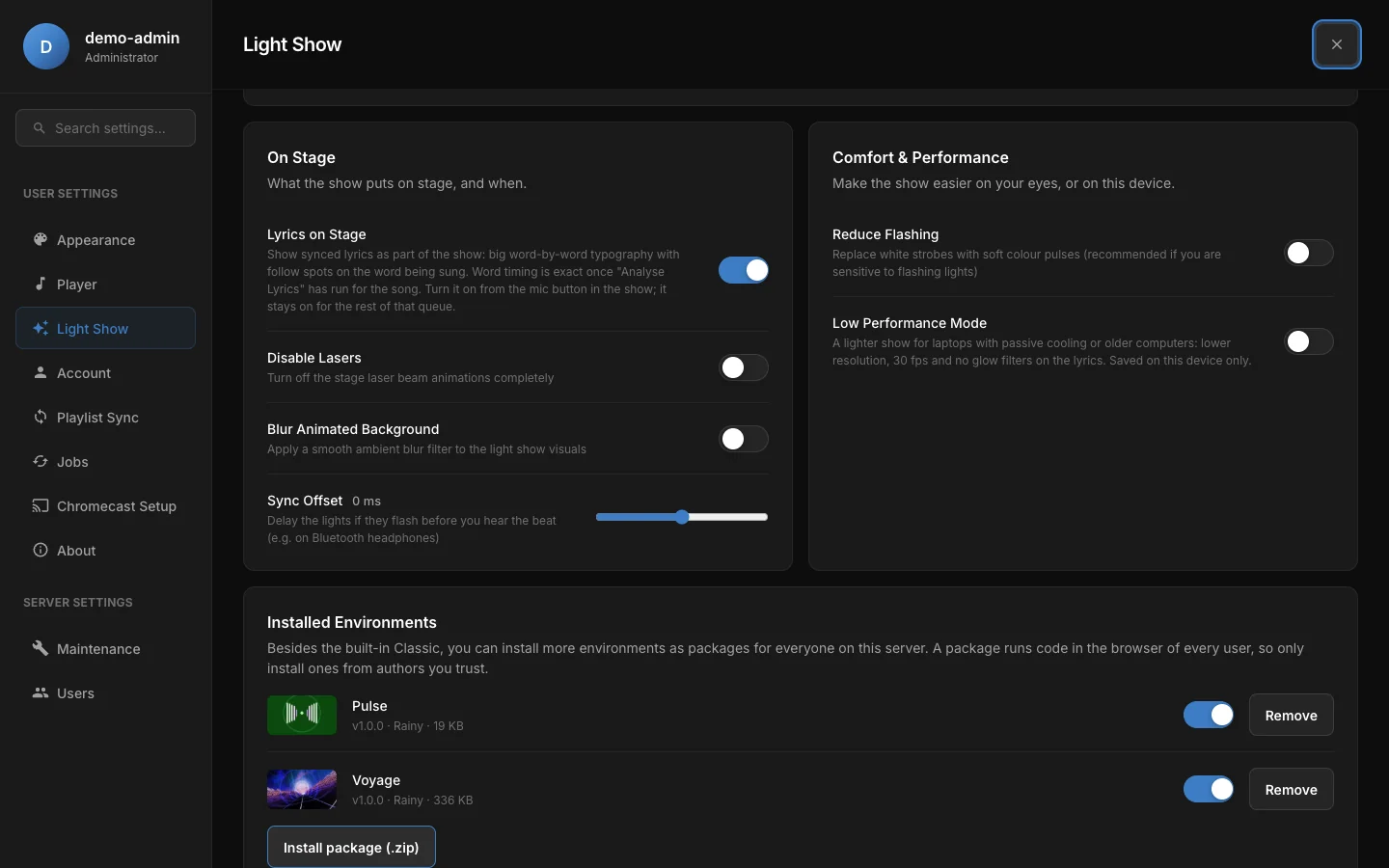
Installed Environments, at the bottom of Settings > Light Show. Only administrators see it.
A package can be up to 20 MB. Rainy refuses one that is malformed, that reaches outside its own folder, or that was written for a newer version of Rainy than yours, and tells you why.
Update, switch off or remove
| To | Do this | What happens |
|---|---|---|
| Update | Install a package with the same id again. | The new version replaces the old one. If it was switched off, it stays off. |
| Switch off | Turn off the switch next to it. | It disappears from everyone's choices, but stays installed. Turn the switch on to bring it back. |
| Remove | Click Remove and confirm. | The package is deleted from the server. |
Anyone whose show is running in an environment that is switched off or removed goes back to Classic, with a notice. Their account keeps its choice, so the environment comes back for them if you install or switch it on again.
Installed packages are stored in Rainy's database, so they survive an update and a rebuilt Docker container, and they are part of your database backup.
Packages in the Rainy repository
The Rainy repository carries the source of two environments under packages/. Neither is installed by default.
| Package | What it is |
|---|---|
packages/voyage |
Voyage: fly through the song in 3D. Gates stand on every beat, portals on every section change, the album cover is the sun at the end of the road, and the lyrics are built in the air ahead of you. Needs WebGL 2. |
packages/example-pulse |
Pulse: a small example with rings on the beat and a spectrum. It exists as a starting point for writing your own. |
To turn one into a package, run this from the Rainy folder:
python scripts/pack_environment.py packages/voyage
It writes dist/voyage-1.0.0.zip, which is the file to install.
When something goes wrong
"… is not available on this device. Back to Classic." The environment failed to start or stopped working, and Rainy went back to Classic so the show goes on. It stays on Classic on that device until you reload the page or the package is updated. The cause is in the browser's console; pass it on to the package's author.
"… is no longer installed on this server. Back to Classic." An administrator switched off or removed the environment you were using.
A card says "Needs a newer version of Rainy". The package was written for a newer version of the environment API. Update Rainy.
The show stutters in one environment and not in another. Environments differ a lot in how much they ask of the graphics card. Turn on Low Performance Mode, or pick a lighter environment on that device.