
Documentation Stage and devices
Light show
Turn any song into a synced light show in the fullscreen player, with lasers, beams and scenes that hit the beats, builds and drops.
Rainy's light show is a visual layer for the fullscreen player. Rainy analyses each song on the server once, works out its beats, sections, drops and silences, and stores the result. When you play the song with the show on, the lights follow that score, so a drop lands on the drop instead of a moment later.
Turn the show on
- Start a song and open the fullscreen player by clicking the cover or the queue button.
- Click the Toggle Light Show button (the bars icon next to the volume control).
- Click it again to go back to the normal artwork view.
While the show runs, a small bar at the top shows the song's tempo and genre profile, with the show's own buttons: the cube switches environment and the microphone puts the lyrics on stage.
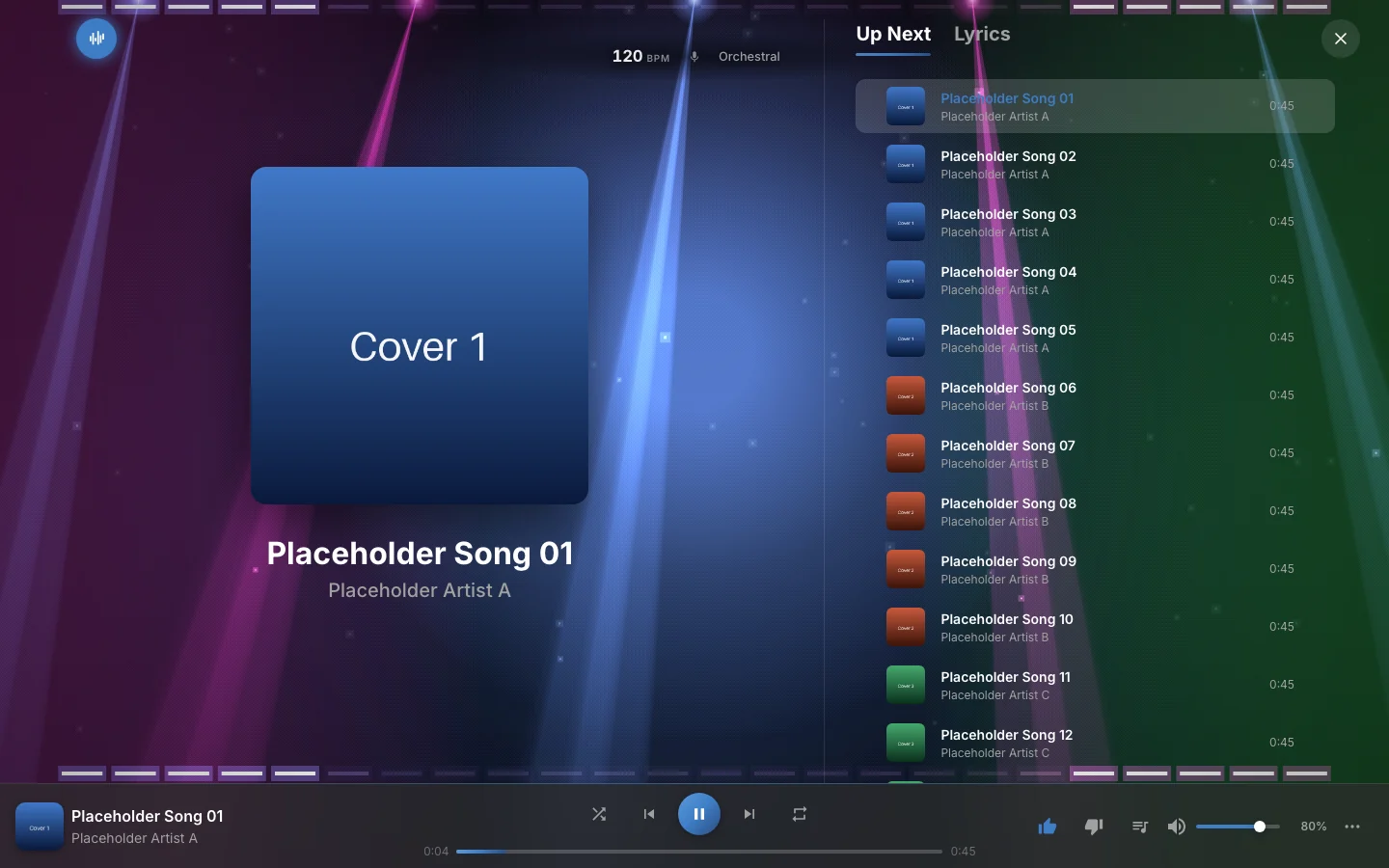
The fullscreen player with the show on, in the Classic environment. The album art is dimmed behind the lights.
Environments
An environment is a kind of show. Every environment follows the same analysis of the song, and each one stages it its own way, lyrics included.
- Classic is built in: a concert rig of lasers, beams and strobes over the album art.
- Your administrator can install more. Voyage, for example, is a 3D flight through the song.
Pick one in Settings > Light Show, where each environment has a card with its picture, or click the cube button in the show to move on to the next one. Your choice is saved to your account.
Light show environments covers choosing, installing and removing them.
How the score is made
Rainy analyses a song when it arrives in your library. New imports are analysed automatically, and the scanner queues any song it adds to the library.
Older songs and songs without a score are analysed when someone asks for their show. The first time you open the show for such a song, Rainy queues the analysis and runs a live fallback that guesses the beats from the audio as it plays. While the analysis runs, the player checks about every 8 seconds and switches to the score once it is ready.
Scores are stored once per song, so everyone who can see a song gets the same show, in every environment.
Rainy's analyser has a version number. A show made by an older version is treated as outdated, and it is re-analysed the next time it is needed or when you run the backfill described below.
How the light show works explains what the analysis finds and how it becomes light.
Settings
Everything about the show is in Settings > Light Show. Most options are saved to your account.
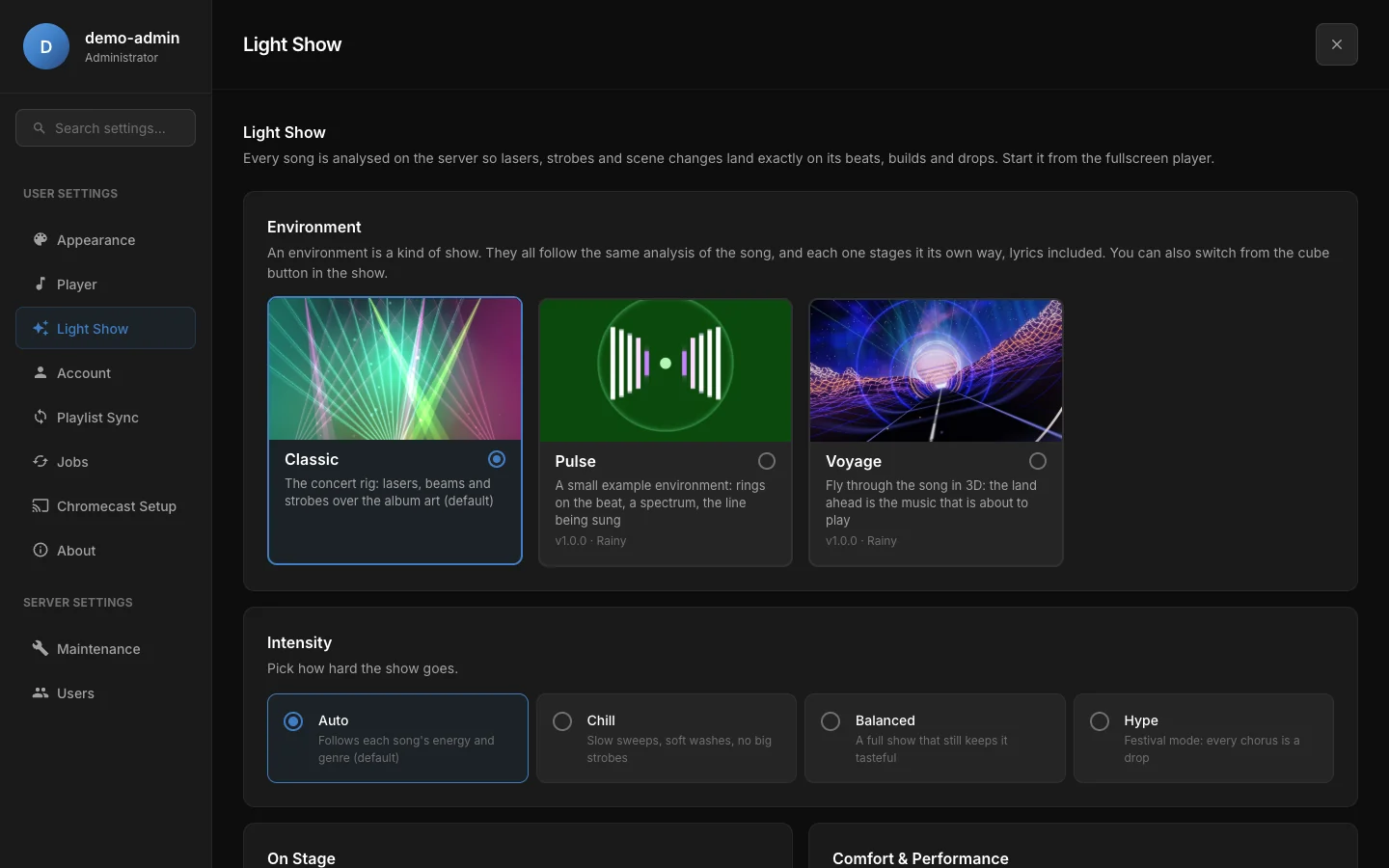
Settings > Light Show: the environments on this server, then how hard the show goes.
| Card | Option | What it does |
|---|---|---|
| Environment | The kind of show. See Environments. | |
| Intensity | Auto (default) follows each song's energy and genre. Chill uses slow sweeps and soft washes with no big strobes. Balanced is a full show that stays tasteful. Hype is festival mode, where every chorus feels like a drop. | |
| On Stage | Lyrics on Stage | Offers synced lyrics as part of the show, word by word. Turn them on with the microphone button in the show; they stay on for the rest of that queue. Word timing is exact once lyrics have been analysed for the song. |
| On Stage | Disable Lasers | Turns the laser beams off completely. |
| On Stage | Blur Animated Background | Softens the show with an ambient blur. |
| On Stage | Sync Offset | Moves the lights up to 300 ms earlier or later, in 10 ms steps. Use it when the lights flash before you hear the beat, for example on Bluetooth headphones. |
| Comfort & Performance | Reduce Flashing | Replaces white strobes with soft colour pulses. Environments that move the camera also hold it steady. Turn it on if flashing lights bother you. |
| Comfort & Performance | Low Performance Mode | A lighter show for laptops and older computers: lower resolution, 30 frames per second and no glow filters. This setting is saved on this device only. |
Administrators also see an Installed Environments card at the bottom of the section. It is described in Light show environments.
If the show runs slowly for about ten seconds at its lowest quality, Rainy offers to turn on Low Performance Mode. You can accept or decline.Note: Rainy limits full flashes to three a second, whatever the song or the environment asks for. Reduce Flashing goes further and removes the white strobes.
Song settings
Each song has its own Light Show tab in the song settings.
- The tab shows whether a show exists, its tempo, its genre profile and the number of sections, and the status of the latest analysis.
- Analyse Now creates a show for a song that has none. Re-analyse Light Show replaces the current one. If the last analysis failed, the button reads Try Again.
- Remove Light Show deletes the stored score.
A show belongs to the song, not to your account. Re-analysing or removing it changes the show for everyone who can see that song.
Analyse many songs at once
The Jobs section in Settings has an Analyse Light Shows card. It shows how many songs are ready and lists the running and recent jobs.
- Open Settings > Jobs.
- Click Run to analyse every song in your library that is missing a show or has an outdated one. Only songs you can see are included.
- Click Force to re-analyse every song, even ones that are already up to date. Only administrators see this button, and Rainy asks you to confirm first.
The job runs in the background, and you can keep using Rainy while it works. Single-song jobs jump ahead of a library-wide run, so a newly imported song does not wait for the whole library.
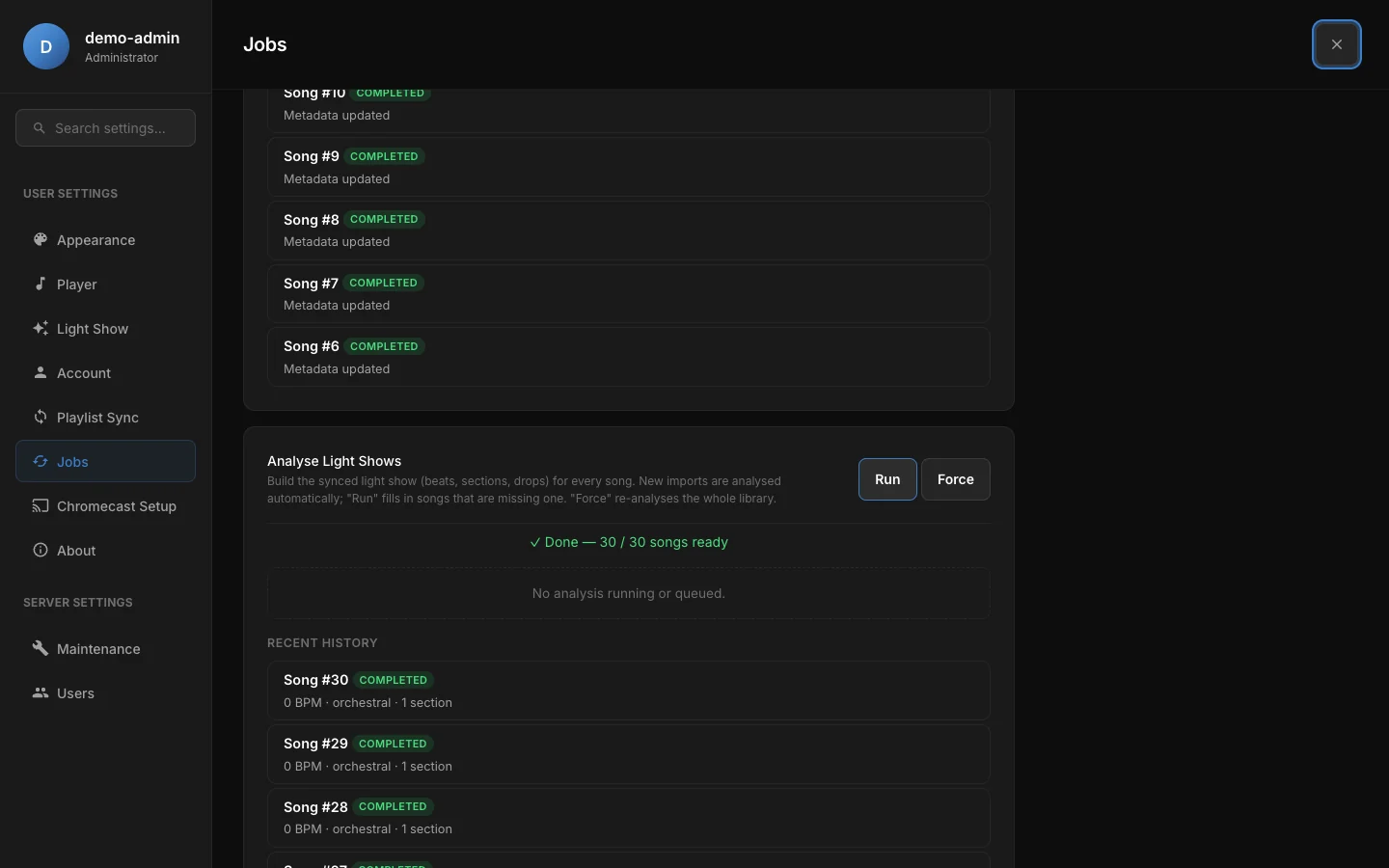
The Analyse Light Shows card: the ready count, Run for missing shows and Force for administrators.
Speed and hardware
Analysis runs on your server's processor by default and uses several cores. If the server has an NVIDIA graphics card, Rainy can use it for part of the analysis. The settings for that are in GPU acceleration. The results are the same either way.
The show is drawn in your browser, so a slow browser can make it stutter even when the score is ready. Low Performance Mode helps.