
Documentation Playlists and discovery
Playlist sync
Keep a local playlist up to date with a YouTube Music or Spotify playlist, automatically.
Playlist sync links one of your playlists to a remote playlist. Rainy checks the remote playlist on a schedule, downloads the tracks it does not have yet, and in mirror mode removes the tracks that have been taken off the remote playlist.
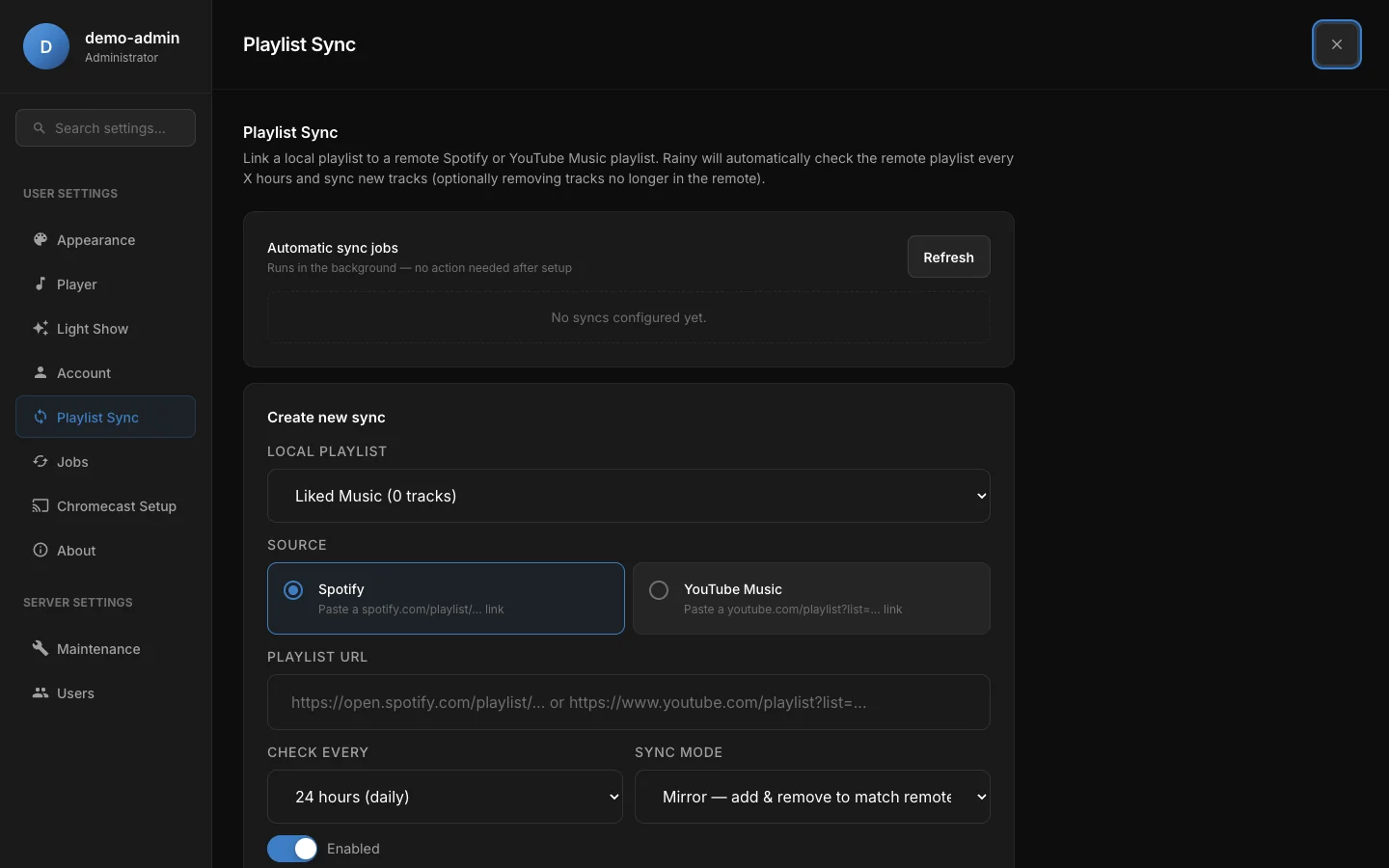
The Playlist Sync section of Settings lists your syncs, with the form for creating a new one below.
Before you start
- You need a playlist you own. Only the owner of a playlist can set up or manage its sync.
- Each playlist can have one sync. To change its source, delete the sync and create a new one.
- Downloads are saved to your music folder, so a music folder must be set up first.
- Spotify needs no account and no API key. Rainy reads the public page of the playlist, so use a playlist that anyone can open.
- YouTube Music needs a playlist link that contains a
list=part, such ashttps://www.youtube.com/playlist?list=....
Create a sync
- Open Settings and choose Playlist Sync.
- Choose the local playlist from the Local playlist list.
- Choose the source, Spotify or YouTube Music.
- Paste the playlist link into Playlist URL.
- Choose how often to check under Check every. The options run from 1 hour to 7 days, and the default is 24 hours.
- Choose a Sync mode: Mirror (the default) or Add only.
- Leave Enabled switched on and click Create sync.
The first automatic check happens after one interval, not straight away. To run a check at once, use Run now on the sync.
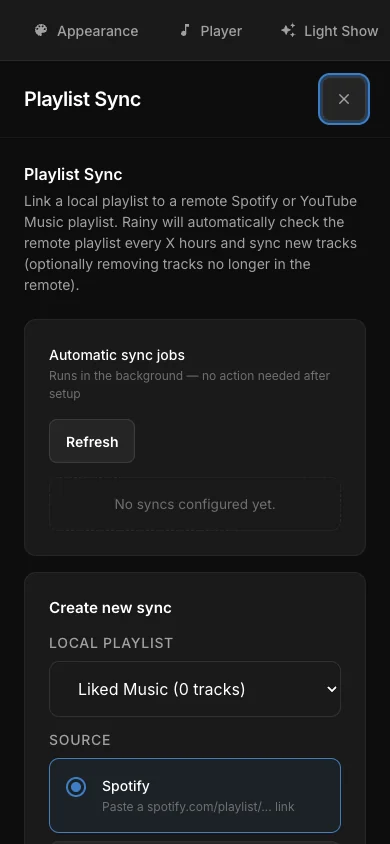
The same settings on a phone-sized screen.
Sync modes
Both modes add the new tracks from the remote playlist. They differ in what happens to tracks that are not on the remote playlist.
| Mode | Tracks on the remote, not yet local | Local tracks not on the remote |
|---|---|---|
| Mirror | Downloaded and added | Removed from the playlist |
| Add only | Downloaded and added | Left alone |
Rainy matches tracks loosely. It ignores capital letters, accents, punctuation and words such as remix, live, acoustic and feat, so a track that is already in your playlist is not downloaded a second time.
In mirror mode, any song in the playlist that does not match the remote playlist is removed. That includes songs you added by hand. If you add your own songs to a synced playlist, choose Add only.
The mirror safety limit
Mirror mode will not remove more than half of the playlist's songs in one run, with a minimum of three. If a run would remove more than that, Rainy removes nothing for that run and still completes it. The history then shows a removal count of zero, and the run is listed as a success without the warning text. Check that the remote playlist is complete and that the tracks match before you rely on mirror mode.
Manage a sync
Each sync has its own row with these controls:
- Enabled: pause or resume the sync without deleting it.
- Check every and Sync mode: change the interval or the mode.
- Run now: check the remote playlist immediately. The page waits for the run to finish and then shows a message such as "Synced: +3 -1".
- Delete: remove the sync. The playlist itself is kept.
Rainy looks for due syncs about once a minute. If a run fails, the next attempt happens at the next scheduled time, not straight away. Use Run now to try again sooner.
Sync history
The Sync history section lists the last 30 runs across all your syncs. Each entry shows the playlist, the time, the status, and the counts for added, removed, kept and failed tracks, plus the number of tracks on the remote playlist. Expand Details to see the titles that were added or removed.
Select Refresh to load the latest runs.
How Spotify tracks are matched
Spotify does not supply audio files, so Rainy searches YouTube Music for each new track, picks the closest result and downloads it. The version you get may not be the exact recording on Spotify, such as a live or extended version.
Downloaded tracks are added to your library, and you get access to them. Rainy only downloads tracks that are not already in the playlist.