
Documentation Imports and metadata
Import music from YouTube and Spotify
Bring a song or a whole playlist from YouTube, YouTube Music or Spotify into your library, either right away or as a background job.
Rainy can download music from YouTube and YouTube Music, and it can find Spotify tracks on YouTube Music and download those instead. Each import lands as an MP3 in your music folder, is added to your library, and becomes available on your account. Imports are launched from the Add Music dialog.
Only import music you own or have permission to download. You are responsible for following copyright law where you live and the terms of any platform you use.
Before you start
- Set your music folder first (see Configuration). Without it, imports fail with "Music path not configured", and background imports wait in the queue.
- For YouTube imports, the server needs ffmpeg on its
PATHand a JavaScript runtime: Deno, Node.js or Bun. The Docker setup already includes both. Without them, most YouTube downloads fail. - Spotify imports need no account and no API key. Rainy reads the public Spotify page for the track or playlist.
Open Add Music
- Click your name in the top bar to open the account menu.
- Click Add Music.
- Choose YouTube Import or Spotify Import.
- Choose the Song or Playlist tab and paste a link.
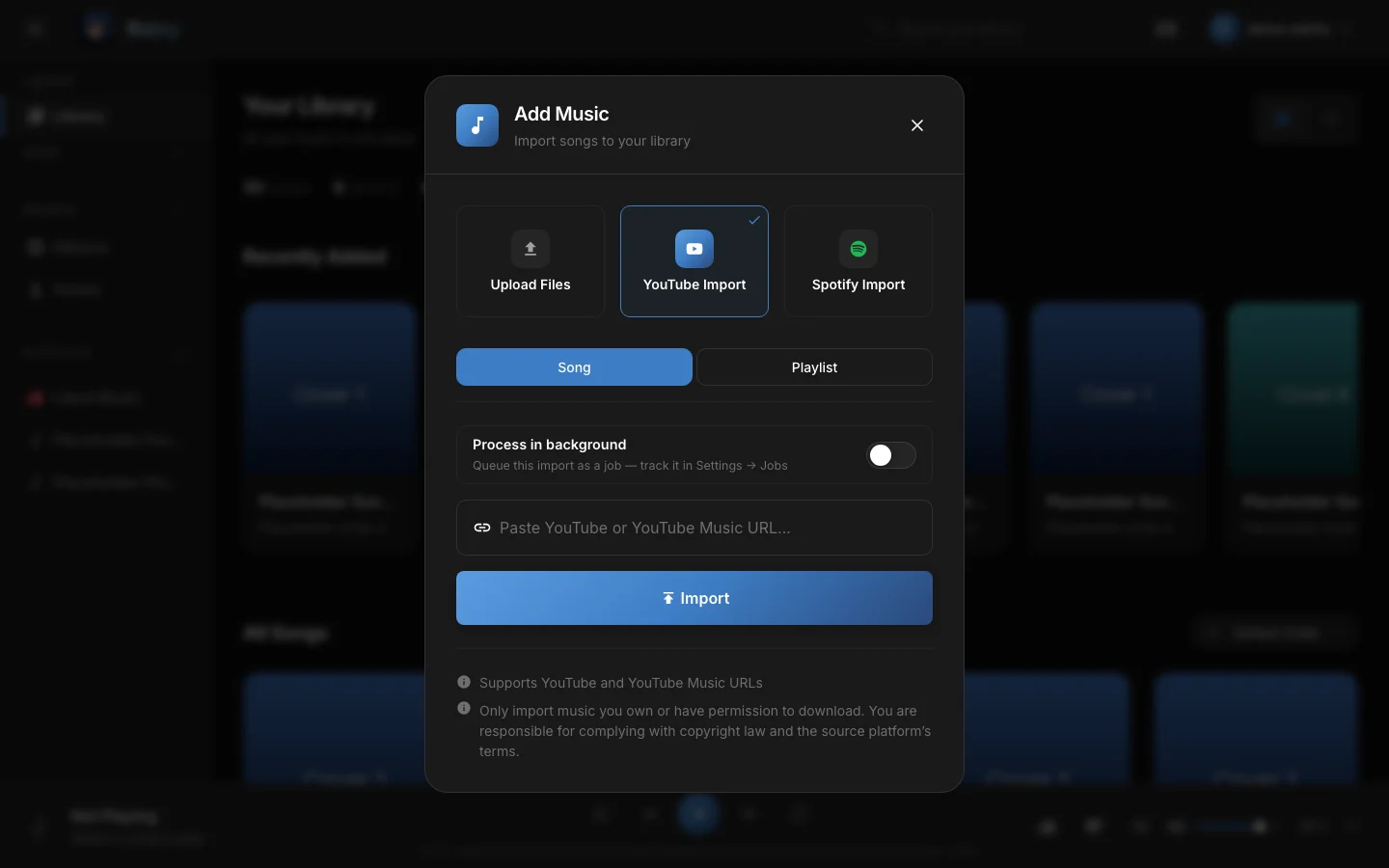
The YouTube Import tab. The switch below the tabs queues the import as a background job.
The Spotify Import tab works the same way, with its own Song and Playlist tabs.
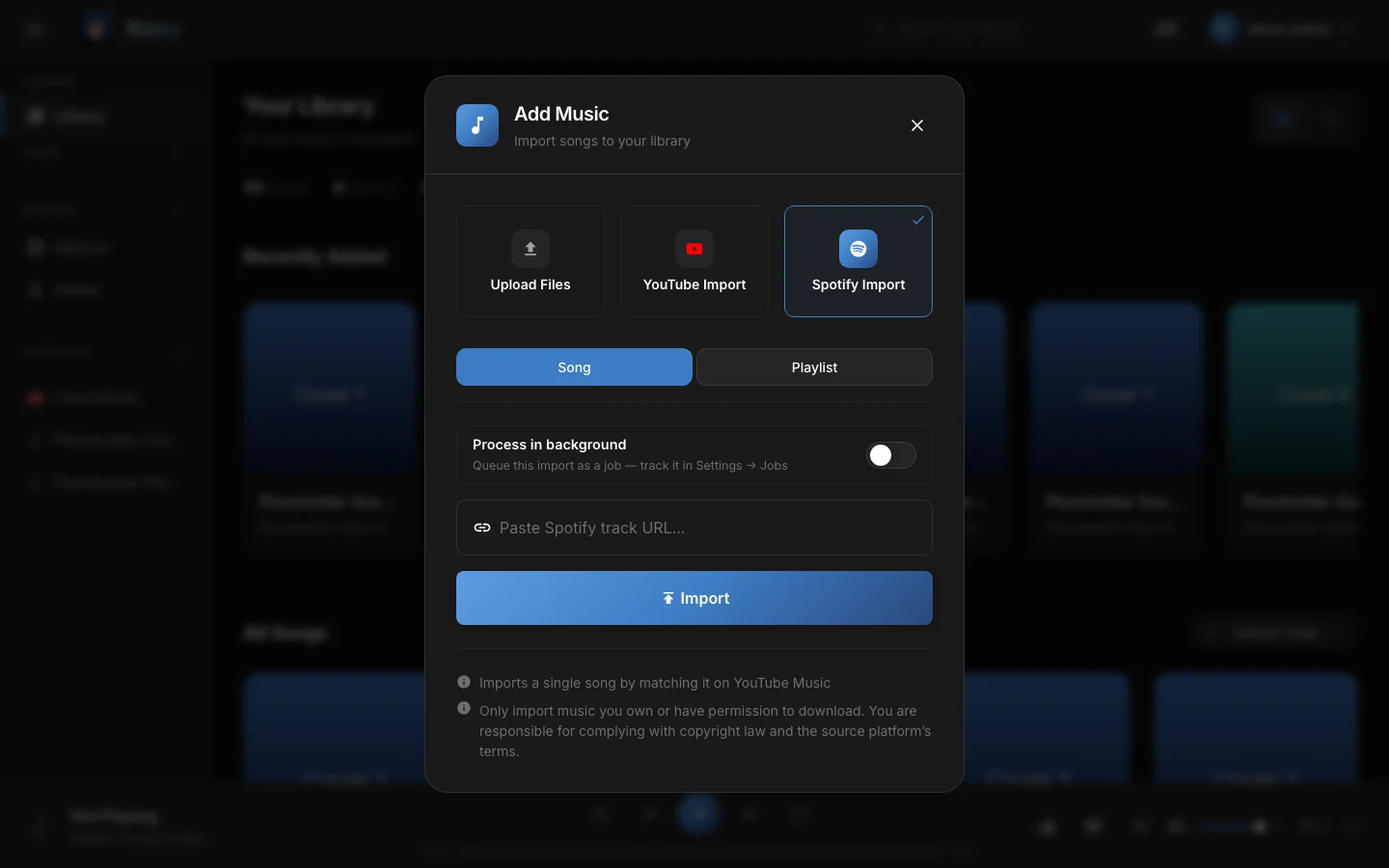
The Spotify Import tab. Paste a track or playlist link into the field.
The links Rainy accepts:
| Source | Link format |
|---|---|
| YouTube song | youtube.com/watch?v=…, youtu.be/…, music.youtube.com/watch?v=… or youtube.com/shorts/… |
| YouTube playlist | youtube.com/playlist?list=… or music.youtube.com/playlist?list=… |
| Spotify song | open.spotify.com/track/… or spotify:track:… |
| Spotify playlist | open.spotify.com/playlist/… or spotify:playlist:… |
What a YouTube song import does
Rainy downloads the best available audio, converts it to a 320 kbps MP3 and saves it in your music folder. It writes the title and artist into the file tags and embeds the video thumbnail. The same thumbnail is saved as the song's cover in the covers folder.
If the song is already in your library, Rainy does not keep a second copy. It removes the new file and gives your account access to the existing song. The dialog tells you the song is already there.
Rainy always catches byte-identical copies. It also catches the same song from another source, such as a lyric video, when thefpcalctool is available to the server, either in itsbinfolder or on itsPATH. The Docker image installsfpcalc. See Uploads and duplicates.
How Spotify imports work
Rainy never downloads audio from Spotify. For each Spotify track it:
- Reads the track's title and artist from the public Spotify page.
- Searches YouTube Music for those words and looks at the top five results.
- Picks the result whose title and artist share the most words with the Spotify track.
- Downloads that result from YouTube, then imports it like a YouTube song.
The match is based on words, not on the recording itself. A live version or a remix can win over the studio track, so check the result after importing. If nothing matches, a single-track import fails with "No YouTube Music match found".
Spotify can change its public pages at any time. When that happens, Spotify imports stop working until Rainy is updated.
Import a playlist
- Open the Playlist tab for YouTube or Spotify.
- Paste the playlist link and start the import.
- If a playlist with the same name already exists in your account, Rainy asks what to do before it downloads anything.
| Choice | What happens |
|---|---|
| Add new songs | Keeps the existing playlist and its order, and adds the newly imported songs. |
| Replace | Empties the existing playlist, then fills it with this import. |
| Create new | Creates a second playlist with a number after its name, such as "Name (2)". |
Rainy then downloads each track, adds it to the playlist and builds a mosaic cover from the songs' covers. Tracks that cannot be matched or downloaded are skipped, and Spotify imports count them as failed.
The name check only looks at playlists in your own account. Another account's playlist with the same name is never changed.
Import in the background
Switch on Process in background before you start. Rainy then queues the import, closes the dialog and shows the message "Import queued". You can follow the progress in Settings → Jobs. For the details, see Import queue.
After an import
Every new song that Rainy imports or scans is queued for analysis in the background. That analysis fetches genre and mood tags, looks up lyrics and times them. You do not need to start it yourself. See Metadata and covers and Lyrics.
Keep yt-dlp up to date
YouTube changes its player often, and an old yt-dlp fails with errors such as HTTP 403. Rainy checks for a newer yt-dlp about 30 seconds after the server starts handling requests, and then every 12 hours. If a download fails in a way that points to an old version, it updates at once, at most once an hour. Set RAINY_YTDLP_AUTO_UPDATE=0 to turn this off. See Maintenance for manual updates.