
Documentation Getting started
First run
Create the administrator account, sign in and out, change your password and set your interface preferences.
The first time you open Rainy, before any account exists, it shows a setup form instead of the sign-in screen. You complete it once. After that, Rainy shows the sign-in screen, and new accounts are created by an administrator. This page covers the setup, the everyday sign-in and sign-out, and the account and appearance settings.
Create the administrator account
- Open Rainy in your browser, for example
http://localhost:6969. - Choose a language. The choice applies to the setup screen immediately and becomes the administrator's interface language.
- Enter a username and an email address. Rainy stores the email in lowercase, and you will use it to sign in.
- Enter a password. It must be at least 8 characters.
- Enter the music library path. This must be a folder that already exists on the server. In Docker, use
/music. - Optionally turn on No Anime. See Appearance below.
- Select Complete Setup. Rainy creates the account, saves the library path and signs you in.
| Field | Rule |
|---|---|
| Language | English, Català, Español or Polski. |
| Username | Required. Used as your display name. |
| Required and unique. Used to sign in. | |
| Password | At least 8 characters, and at most 72 bytes. Characters outside ASCII take more than one byte. |
| Music Library Path | Required. Must be an existing folder on the server. |
The first account is the administrator. Administrators see Maintenance and Users in Settings. Once setup has run, the setup form is not shown again.
Setup can only create the first account. To add others, sign in as the administrator and open Settings > Users. See users and access.
After setup, run Settings > Maintenance > Quick Scan to index the files in your library. Then read library for the next steps.
Signing in
On the sign-in screen, enter the email address and password of your account. Rainy does not sign in by username.
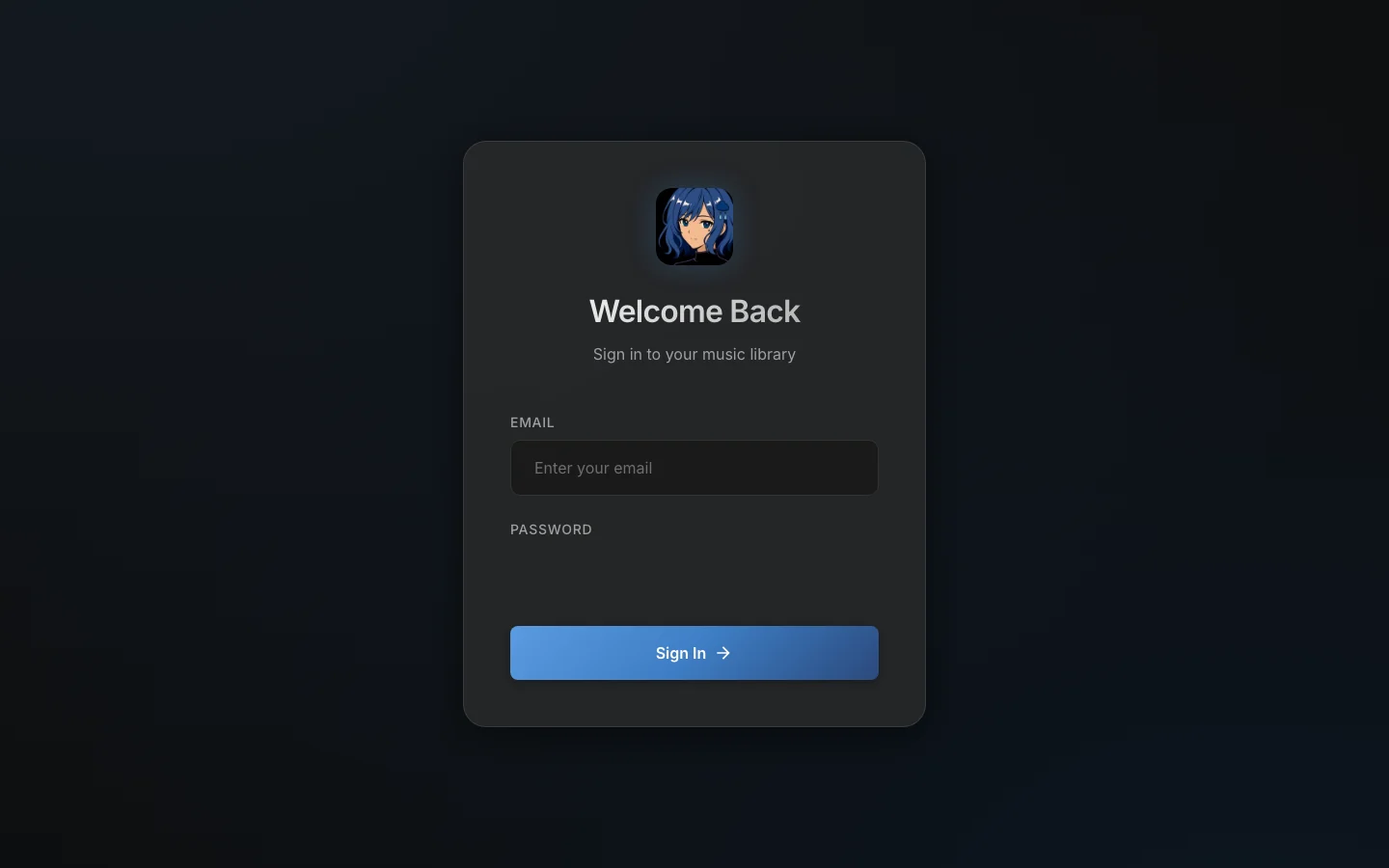
The sign-in screen. Rainy shows it to anyone who is not signed in.
If the email or password is wrong, Rainy shows "Invalid email or password". To slow down password guessing, Rainy blocks further attempts for 15 minutes after 8 failed sign-ins for one email address, or after 50 failed sign-ins from one IP address. A successful sign-in clears the count for that email address.
These limits are counted separately by each server process. If you run Rainy under Gunicorn with several workers, the effective limit is higher. If you reach Rainy from outside your network, put it behind an HTTPS reverse proxy and set RAINY_TRUST_PROXY, so the limits see the real client address. See configuration.
Your session lasts 30 days by default and extends each time you use Rainy, so you stay signed in on your devices. The length is set with SESSION_LIFETIME_DAYS (see configuration).
Signing out
Select your name in the top-right corner to open the account menu, then select Logout. Rainy ends your session on the server, so the same session cookie no longer works, even if someone copied it.
If Rainy cannot end the session, it shows "Could not log out. Please try again." You remain signed in in that case.
Changing your password
- Open Settings from the account menu, then select Account.
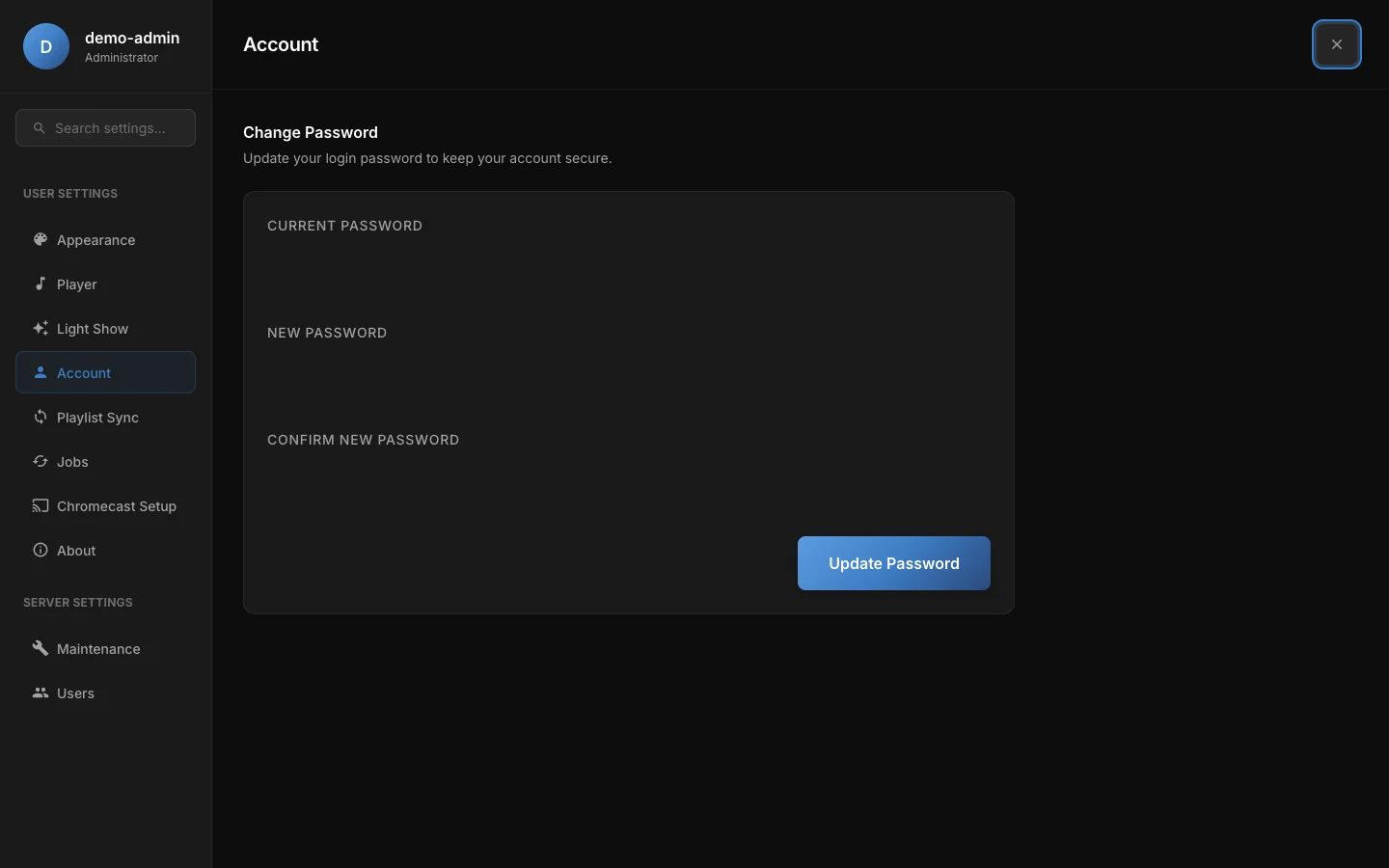
The Account section. The password fields are masked in this screenshot.
- Enter your Current Password.
- Enter a New Password of at least 8 characters, then enter it again under Confirm New Password.
- Select Update Password.
Rainy checks that the two new passwords match before it sends the request. The server then checks your current password. You can attempt the change 5 times in 15 minutes.
After a successful change, Rainy signs you out of every other device and keeps the device you are using. The 8-character minimum applies to new passwords. Accounts that already have an older password keep signing in with it.
If you suspect someone else has your password, change it here. That signs out all other devices.
Appearance
Open Settings > Appearance to set how Rainy looks for your account.
- Interface Language: English, Català, Español or Polski. The language is saved to your account, so it follows you to every device. Rainy reloads the page when you change it.
- Accent Color: pick a colour from the picker or one of the presets. Reset Theme restores the default.
- No Anime: hides the anime logo and shows the animated Rainy wordmark instead, on the splash screen, the sign-in screen and the header. Rainy also remembers the choice in this browser, so the splash screen matches before your account loads.
Your accent colour and No Anime setting are saved as part of your account preferences, so they apply on every device you sign in on. The other options under Settings are described on the player and light show pages.