
Documentation Stage and devices
Chromecast
Play your Rainy library on a Chromecast or Google TV from a Chromium browser, controlled from Rainy Connect.
Rainy can cast to a Chromecast on your network. The browser you use is the remote. Rainy sends the song and its artwork to the Chromecast, which fetches them directly from the server. You can keep using Rainy on the same device, and the Chromecast plays the queue while you control it.
What you need
- A Chromium browser: Google Chrome, Microsoft Edge, Brave, Vivaldi or Opera. Firefox and Safari do not support casting from Rainy.
- A secure origin. Chrome only loads the Cast sender on HTTPS or on
localhost. Plainhttp://addresses on your network need a one-time browser flag, described below. - A reachable media address. The Chromecast loads audio from Rainy's plain-HTTP port,
RAINY_HTTP_PORT, which is6969by default. It has to reach that port on the server's network address. When you open Rainy onlocalhost, Rainy works this out for you, as described below.
You can cast with Rainy open on localhost on the server itself. Rainy then gives the Chromecast the server's LAN address, so the Chromecast can still reach the audio. If you open Rainy by another name, such as a hostname, the links use that name, so the Chromecast must be able to resolve it.
Allow your Rainy address in the browser
Rainy's Chromecast Setup page gives you the address to use.
- Open Settings > Chromecast Setup.
- Click Copy Origin. It copies the address, such as
http://192.168.1.20:6969. - In Chrome, Brave, Vivaldi or Opera, open
chrome://flags/#unsafely-treat-insecure-origin-as-secure. In Edge, openedge://flags/#unsafely-treat-insecure-origin-as-secure. - Paste the address into the Insecure origins treated as secure box.
- Set the option to Enabled, then relaunch the browser.
Do this once on each computer you cast from. If you already serve Rainy over HTTPS from an address the Chromecast can reach, you don't need the flag. Opening Rainy on localhost on the server itself needs no flag either.
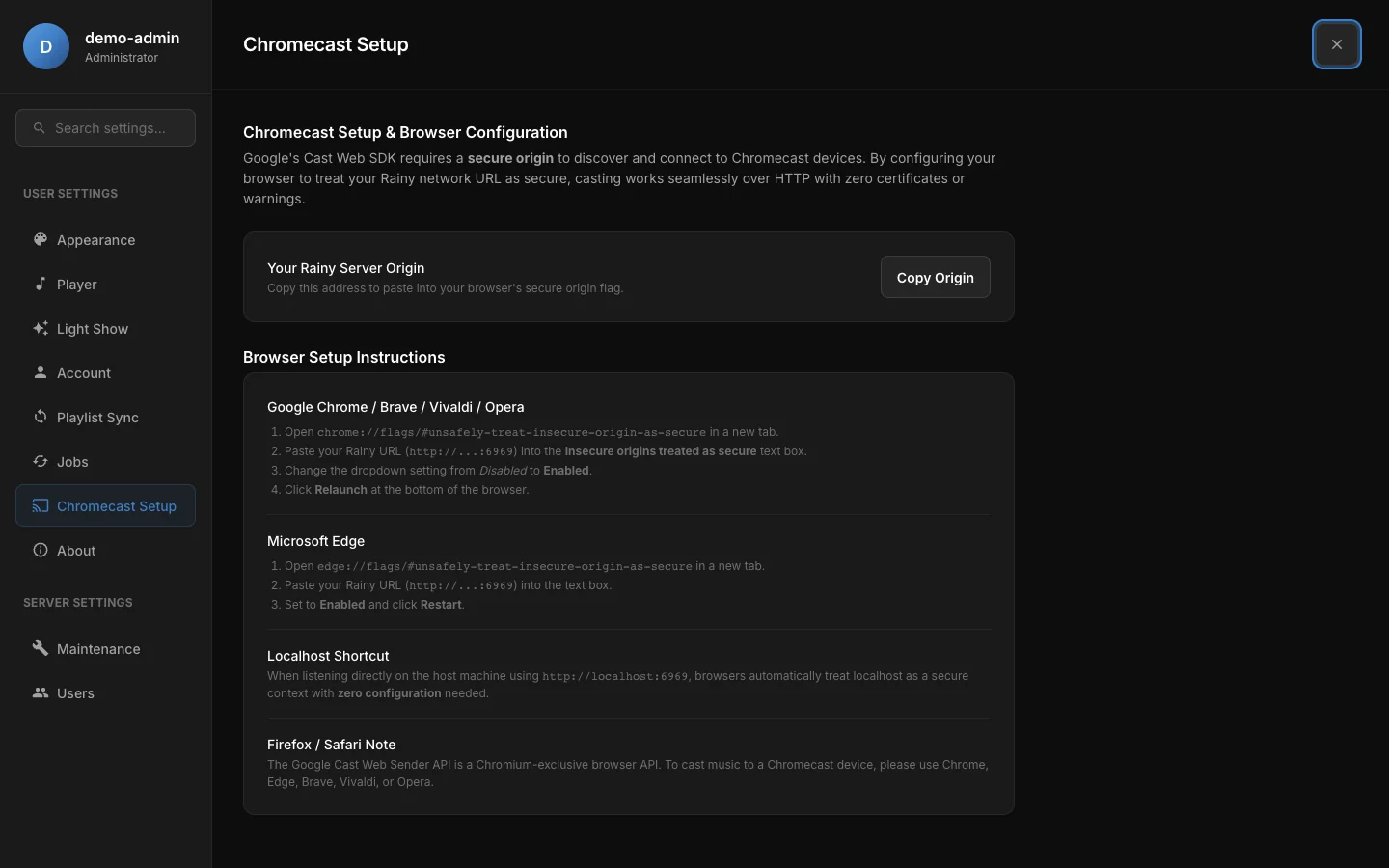
The Chromecast Setup panel. Copy the origin here, then follow the steps for your browser.
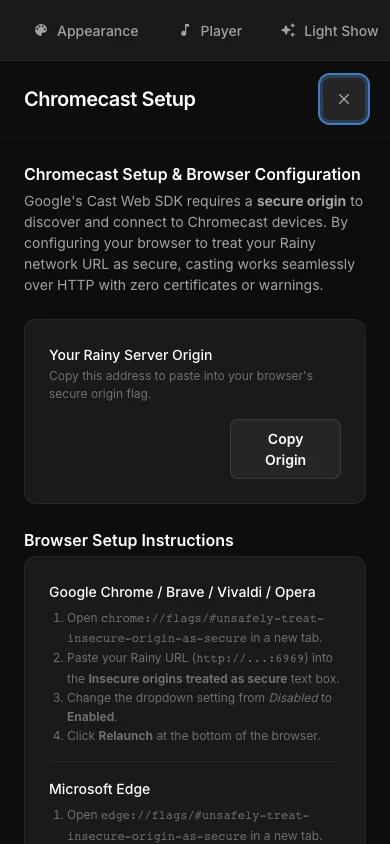
The Chromecast Setup panel at phone width.
Cast a song
- Open Rainy and start a song.
- Click Connect in the player bar.
- In the Listen on list, click Chromecast. The first time, Chrome opens its device picker. Choose your Chromecast.
- The Chromecast row now shows the song that is playing. Click it to control the Chromecast from Rainy.
Rainy sends the Chromecast your current queue, up to 200 songs, starting at the song and position you were on. Use the same remote controls as for another Rainy device: play, pause, next, previous, seek, volume, shuffle and repeat. See Rainy Connect for the full list.
To bring playback back to the browser, click Play here in the remote panel. Rainy ends the Chromecast session and resumes the same queue at the Chromecast's current position.
The Chromecast row shows Not supported in this browser if you are not in a Chromium browser. It shows Needs HTTPS if Rainy is on an insecure address that the flag has not allowed yet.
Privacy and access
Rainy gives the Chromecast short links to the songs and covers it plays. Each link has a token that works only for audio and cover images, and it stops working after 24 hours. The Chromecast does not need a Rainy login.
Rainy only includes songs you are allowed to play. Shared-playlist songs you can play are included, and songs you can't play are left out of the queue.
Troubleshooting
| What you see | What to check |
|---|---|
| The Chromecast row says Needs HTTPS | Add your address to the flag, or use localhost on the same computer, and relaunch the browser. |
| The row says Not supported in this browser | Use Chrome, Edge, Brave, Vivaldi or Opera. |
| No Chromecast appears in the picker | Make sure the Chromecast and the computer are on the same network and that the flag is enabled. |
| The Chromecast connects but plays no sound | The Chromecast cannot reach Rainy's media address. If you opened Rainy by a hostname, open it by the server's IP address instead. On localhost, Rainy sends the server's LAN address, unless the server has no route to the internet, in which case it keeps localhost. Check that port RAINY_HTTP_PORT is open on the server. |
| You run Rainy in Docker and changed the published port | The media links use RAINY_HTTP_PORT (6969 by default), not the host port. The bundled Docker setup publishes that port as RAINY_PORT, so changing RAINY_PORT can make the audio unreachable from the Chromecast. |
RAINY_HTTP_PORTis read from your.envfile or environment. Restart Rainy after changing it.