
Documentation Stage and devices
Rainy Connect
Control music playing on your other devices, such as a phone or a second browser, from the device you are using.
Rainy Connect lists the Rainy players that are active on your account. Each player is a browser tab, or a mobile app, signed in to the same account. From one device you can see what the others are playing, send them commands and hand playback over to yourself. A Chromecast shows up in the same list. See Chromecast.
You don't need to set anything up. Open Rainy on two devices, start a song on one, and it appears on the other.
Open the device list
- Click the Connect button in the player bar.
- The Listen on list shows This Device and every other active device on your account.
- Click a device to control it. The panel below the list shows its song, position, queue and transport controls.
- Click This Device to go back to controlling the local player.
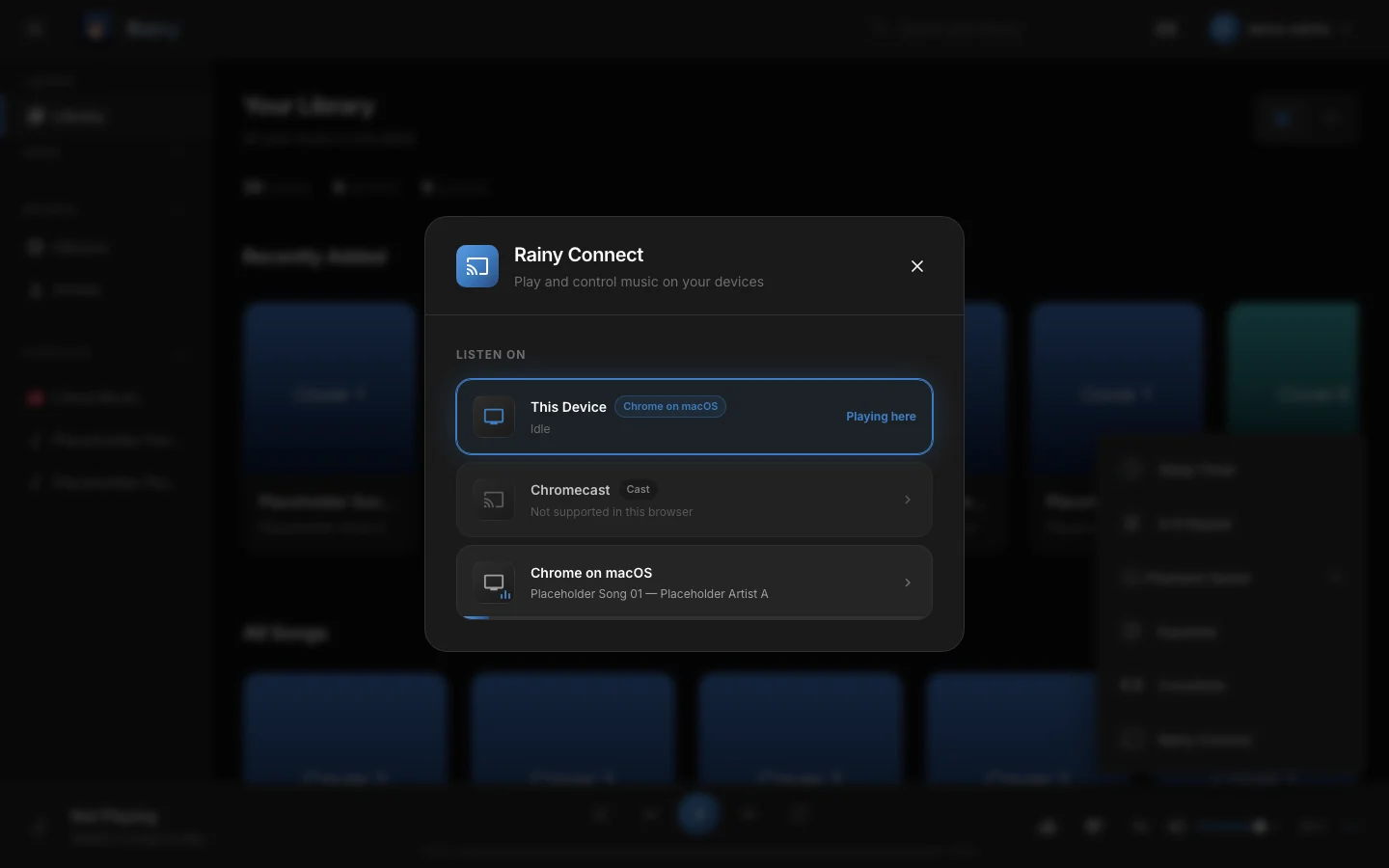
The Rainy Connect panel. With no other devices running, it says so and explains how to add one.
On a phone, the same list fits the screen width.
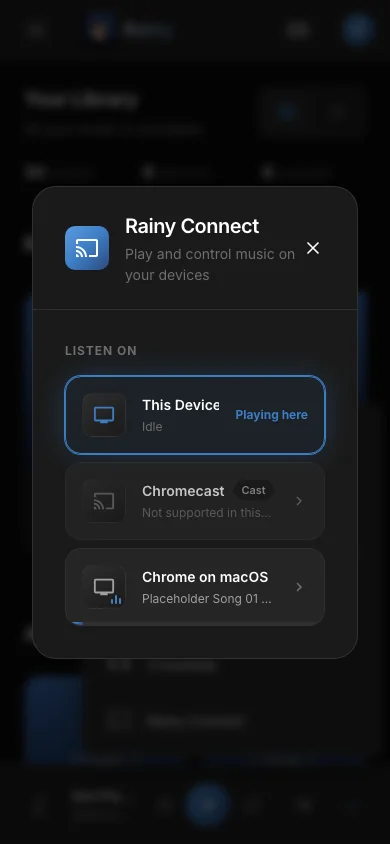
The Rainy Connect panel on a phone.
Which devices appear
A device shows up when its player has a song loaded or is playing. An idle, empty player stays hidden, so the list only shows devices you can use. A device drops off the list about 20 seconds after it stops reporting, for example when you close the tab or lose the network.
Your device does not list itself as a remote. You control it through This Device.
Who can control which device
You can control any device signed in to your own account. You cannot see or control devices belonging to other accounts, and the administrator role makes no difference here. Rainy checks the account on every command.
Remote controls
When you control another device, the panel offers these actions. The device carries them out in its own player.
| Control | What it does on the other device |
|---|---|
| Play / pause | Starts or pauses playback. |
| Previous / next | Moves to the previous or next track in its queue. |
| Seek | Jumps to the position you pick on the progress bar. |
| Volume | Sets the volume, from 0 to 100. |
| Shuffle | Turns shuffle on or off. |
| Repeat | Cycles through repeat off, all and one. |
| Queue, tap a song | Plays the song you tap from its queue. |
The panel also uses two commands that sit behind these controls, for playing a whole queue and for taking control. You don't need to use them directly.
Take Control
Take Control makes this device a remote for the other one. Local audio stops, and the player bar mirrors the remote's song, progress and controls until you stop controlling it. Everything you do in the player bar is then sent to the remote.
Play here
Play here moves playback to this device. This device starts the song from the remote's position and queue.
Play here does not stop the other device. It is sent the same song and position, so it plays as well. Pause it there if you don't want two outputs.
How quickly changes appear
Each device reports its state about every two seconds. The device list refreshes about every five seconds while the panel is open. The target device checks for new commands about once a second, so a command usually takes effect within a few seconds.