
Documentation Library
Library
Browse, search, play and remove the songs in your Rainy library.
The Library is the front page of Rainy. It shows every song your account can hear, in two sections: a row of recently added songs and a full grid of everything else. Above the sections you will see counts of songs, artists and albums.
Your library is not always the whole server. Each account sees only the songs it has access to. Administrators see every scanned song, while other accounts see songs an administrator has published to everyone, songs they imported themselves, and songs saved from a shared playlist. An administrator can also give an account the full-library permission, which shows every song on the server. If a song you expect is missing, ask an administrator to check the scan or the upload status.
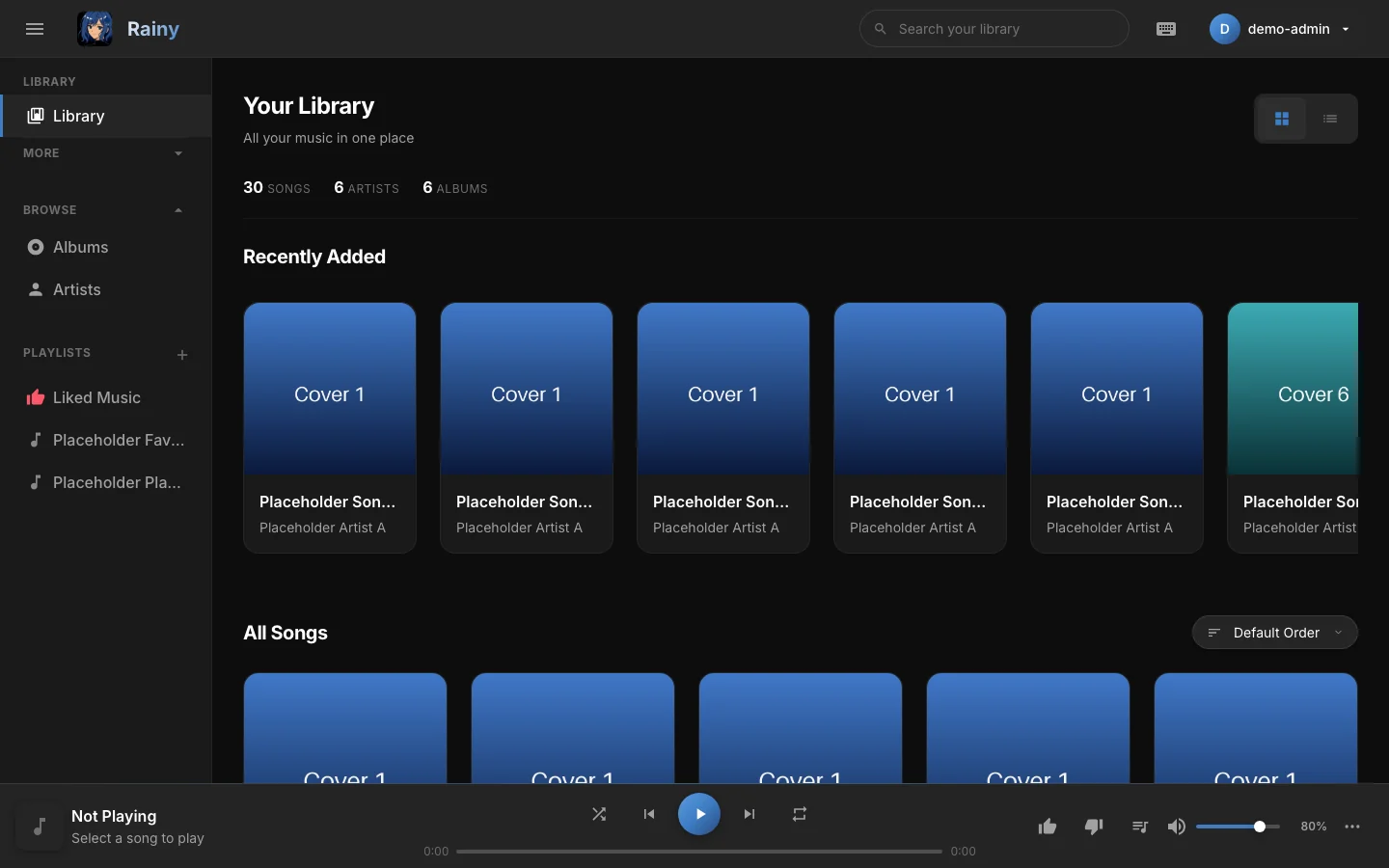
The Library: Recently Added at the top, All Songs below.
Sections
| Section | What it shows |
|---|---|
| Recently Added | The 20 most recently added songs, newest first, in a row you can scroll sideways. |
| All Songs | Every song in your library in a grid. By default it is ordered by artist, then album, then track number. |
When the library is empty, Rainy shows a No Music Found message instead. An administrator needs to run a scan first.
Sort, switch view and search
- To sort All Songs, open the sort menu above the grid and pick Default Order, Title (A-Z) or Title (Z-A).
- To switch to a list, click the list icon at the top right of the Library header. Click the grid icon to switch back.
- In list view, click Title to sort A to Z. Click it again to sort Z to A.
- To find a song, type in the search box at the top of the page. Rainy matches your text against the title, artist and album. Searching from another view takes you back to the Library.
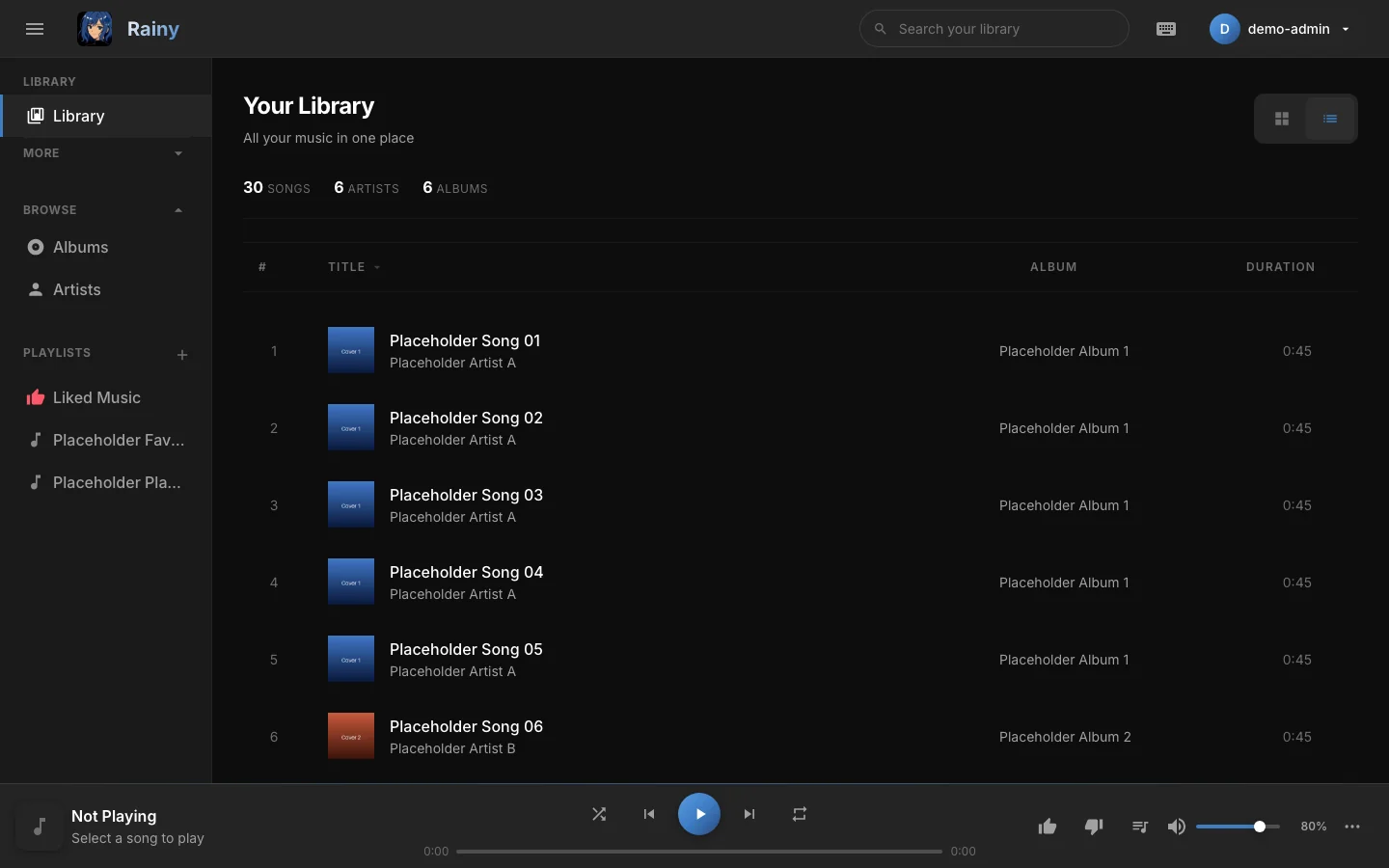
List view shows the track number, title, album and duration on one line per song.
Play a song
Click a song card or a row to start playing it. Use the player controls to skip, shuffle or repeat once a song is playing. See Player for the details.
Rainy checks the server every few seconds. If a song is added from another tab, another device, or by a background import, it appears in the Library without a reload.
Song menu
Each card has a menu button, and right-clicking a song opens the same menu. The items depend on where you are and on your role.
| Item | What it does |
|---|---|
| Add to Playlist | Adds the song to one of your playlists, or to a new one. See Playlists. |
| Add to Your Library | Shown only for a song you hear through a shared playlist. It keeps the song in your library after the share ends. |
| Play Next | Plays the song after the current one. |
| Add to Queue | Adds the song to the end of the queue. |
| Find Metadata | Administrators only. Looks up tags and cover art for the song. See Metadata and covers. |
| Song Settings | Opens the song's analysis, lyrics and light show settings. See Lyrics and Light show. |
| Download Song | Saves a copy of the audio file to your device. |
| Publish to Everyone | Administrators only. Makes a song imported by one account available to all accounts. |
| Remove Song | Removes the song. See below. |
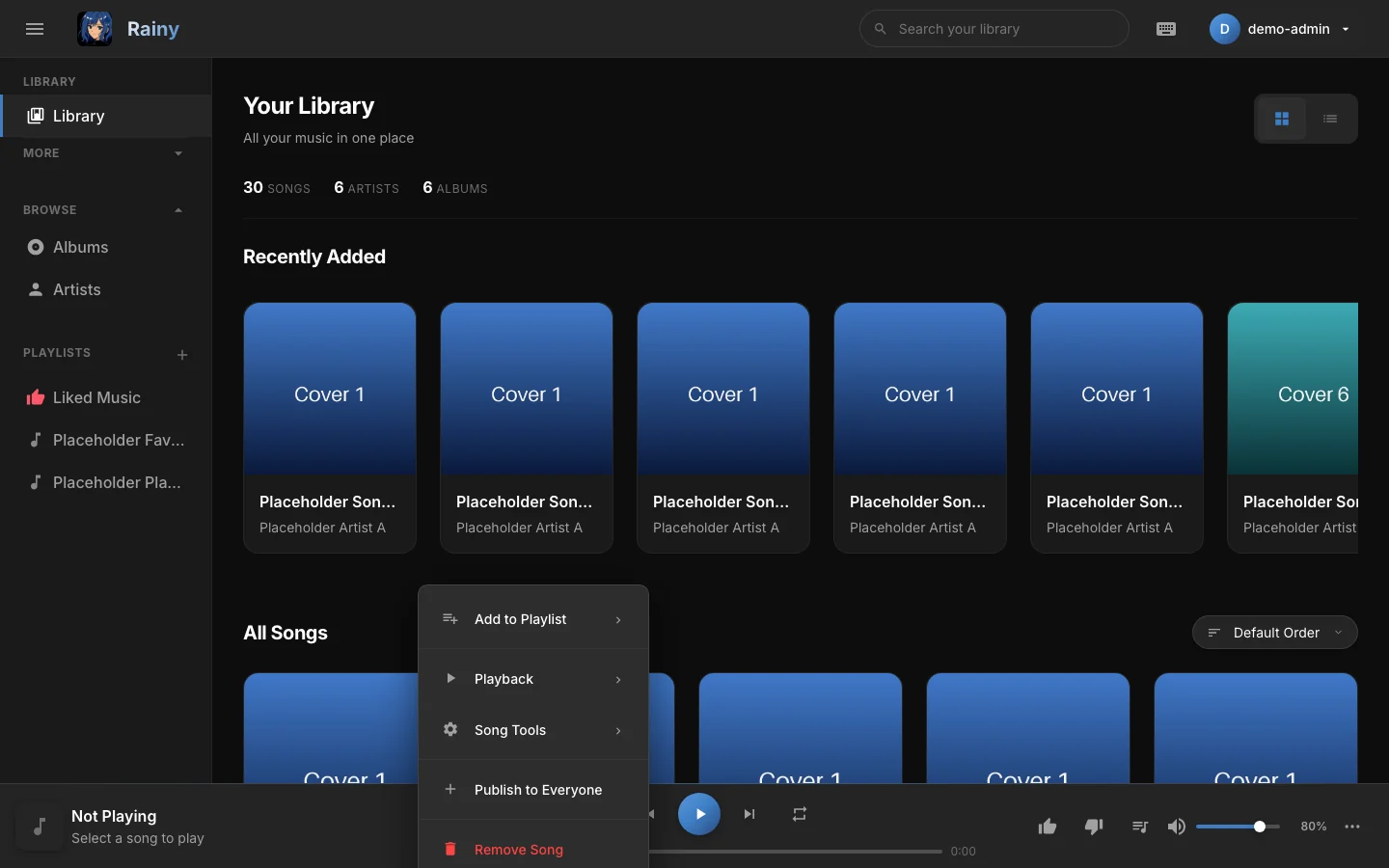
The song menu for one song. The items you see depend on your role and the view you are in.
Remove Song
What Remove Song does depends on your role and on who else has the song.
- Regular accounts remove the song from their own library. The file and the shared entry stay in place. The only exception is a song that nobody else can see and that you imported yourself. For that song, the file is deleted from the server.
- Administrators delete the song everywhere. The database row, the audio file and the cover art are removed from disk, and every account loses the song.
For administrators, Remove Song deletes the file from the music folder. This cannot be undone, and it affects every account. Use a duplicate merge when you only want to keep one copy.
The menu does not show Remove Song inside a shared playlist you do not own. Use Remove from Playlist there instead.