
Documentation Imports and metadata
Track imports in the import queue
Follow background imports in Settings → Jobs, see what finished or failed, and cancel imports that have not started yet.
When you switch on Process in background in Add Music, Rainy does not download the import while you wait. It adds the import to a queue and works through the queue on the server. The Jobs section of Settings shows where each import is.
Queue an import
- Open Add Music from the account menu and choose YouTube Import or Spotify Import.
- Switch on Process in background.
- Paste the link and start the import.
Rainy closes the dialog and shows "Import queued — track it in Settings → Jobs". For a playlist, the name check still comes first, so you choose between Add new songs, Replace and Create new before the job is queued. See Import music for the details.
Open the queue
- Click your name in the top bar and choose Settings.
- Choose Jobs in the left menu.
- Find the Import Jobs card.
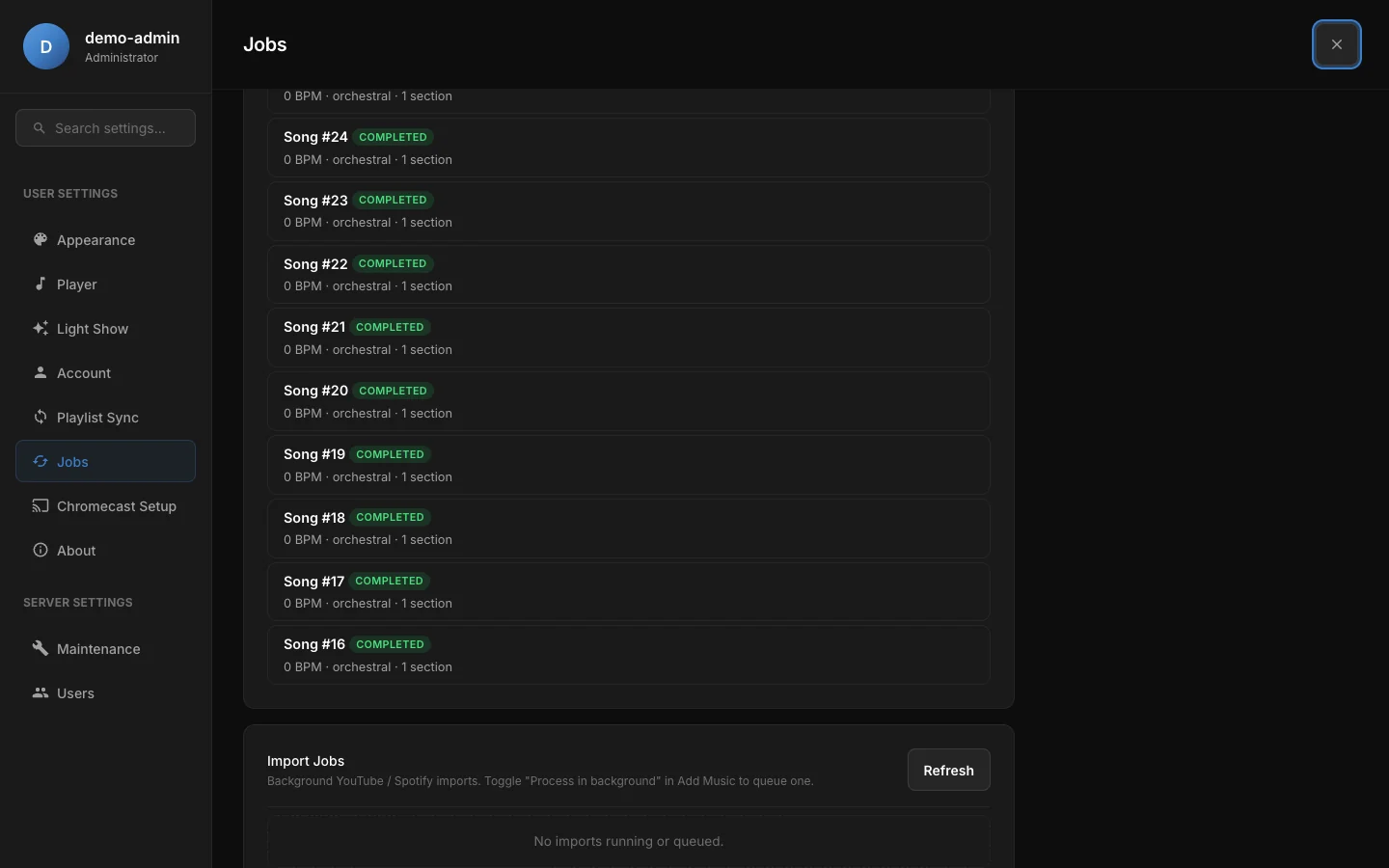
The Import Jobs card. Imports waiting or running appear at the top, and finished ones below.
The card has two lists. Queue shows imports that are running or waiting. Recent history shows the last 25 imports that have finished. The Refresh button reloads both lists. While an import is active and the Jobs page is open, the lists reload on their own every 1.5 seconds.
Job states
Each import has one of five states. The badge on its row shows the state.
| State | What it means | What you can do |
|---|---|---|
| queued | Waiting for its turn. Shows "Waiting in queue…". | Cancel it with the Cancel button. |
| running | Being downloaded now. Shows a progress bar and the current step. | Wait. A running import cannot be cancelled. |
| completed | Finished. The summary names the song, or the playlist with its song count and any failures. | Nothing. Check the library or playlist. |
| failed | Stopped with an error, shown on the row. | Read the error, fix the cause, then add the link again. |
| cancelled | Cancelled while it was still queued. | Nothing. Add the link again if you still want it. |
A completed song import can also say "Already in library". That means nothing new was downloaded and the existing song was enabled for your account.
Cancel a queued import
- Open Settings → Jobs.
- Find the import in the Queue list.
- Click Cancel.
Only queued imports can be cancelled. Once an import is running, the Cancel button is not shown, and the server refuses a cancel request for it.
Retry a failed import
There is no retry button. To try again, open Add Music, paste the same link and queue it again. For a playlist, you choose the name conflict option again.
If the server restarts while an import is running, that import is marked failed with the message "Interrupted by server restart". Imports that were still queued stay queued and run after the restart.
How the queue runs
- Rainy works through the queue oldest first, and only one import runs at a time on each server. A long playlist therefore delays the imports behind it.
- The worker checks for new work every 2 seconds, and it starts a new job at once when you queue one.
- If the music folder is not set, queued imports wait until you set it. They do not fail.
Whose imports you see
- Regular accounts see only their own imports, including the links they pasted.
- Administrators see the imports of every account.
- The Jobs section is available to every account.
If an import is slow, check the progress bar before you cancel anything. Playlists can take a long time because each track is searched and downloaded in turn.
The same Jobs section also lists the background analysis for metadata, lyrics and light shows. Those are covered on Metadata and covers, Lyrics and Light show. The metadata analysis jobs are not filtered by account: every account sees all of them, including the song titles in their messages.