
Documentation Administration
Users and access
Decide who can use your Rainy server, what each person can do, and which songs each person can see.
Rainy has accounts. Every account sees its own library, and the songs you import stay private unless an administrator publishes them. Administrators manage the accounts and the shared library.
Roles
Rainy has two roles. The role controls what an account is allowed to do on the server.
| Role | Shown as | What it can do |
|---|---|---|
| User | User | Play the songs it can see, import its own music, keep its own playlists, like songs and use the light show and Rainy Connect. |
| Administrator | Administrator | Everything a user can do, plus scan the shared music folder, publish songs to everyone, manage accounts, run server maintenance and force re-analysis of light shows. |
Playlist roles such as owner and collaborator are separate from these. They control what someone can do to one playlist.
Administrators see the scanned music folder automatically. Regular users only see it when an administrator publishes a song to them.
Which songs an account sees
Each song on the server is one file, but each account only sees the songs in its own library. A song reaches an account in one of four ways.
- Scanned: the shared music folder. Only administrators get these automatically.
- Personal import: a song the account imported itself. Only that account sees it until an administrator publishes it.
- Published: a song an administrator made available to everyone. Every account gets it, including accounts created later.
- Saved from a shared playlist: a song from a playlist you share with someone. You can play it while you're a member, and you can keep it in your library.
Songs from a shared playlist are playable by its members without being added to their library. Keeping one adds it permanently.
Full system library
Each account can also have Full system library access. With it, the account sees every song on the server, including other accounts' personal imports.
It is off by default, even for administrators. An administrator turns it on per account, when creating the account or from the Users list.
The Users section
Only administrators see Settings > Users. Regular accounts don't see the entry at all.
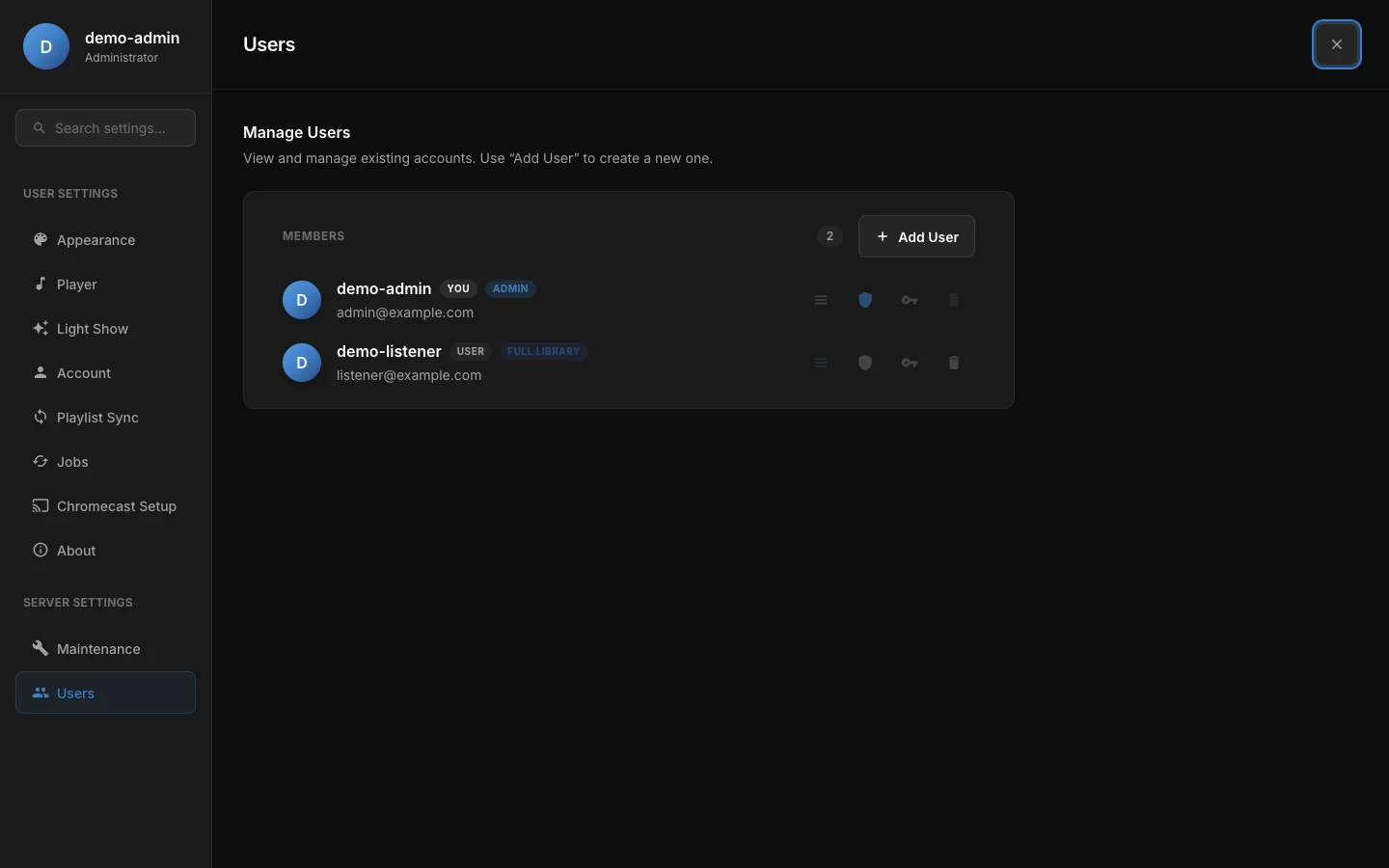
The Users page: each member with its role, full library badge and actions.
Add a user
- Click Add User.
- Enter a username, an email address and a password of at least 8 characters.
- Pick User or Administrator.
- Tick Full system library access if the account should see every song.
- Click Create User.
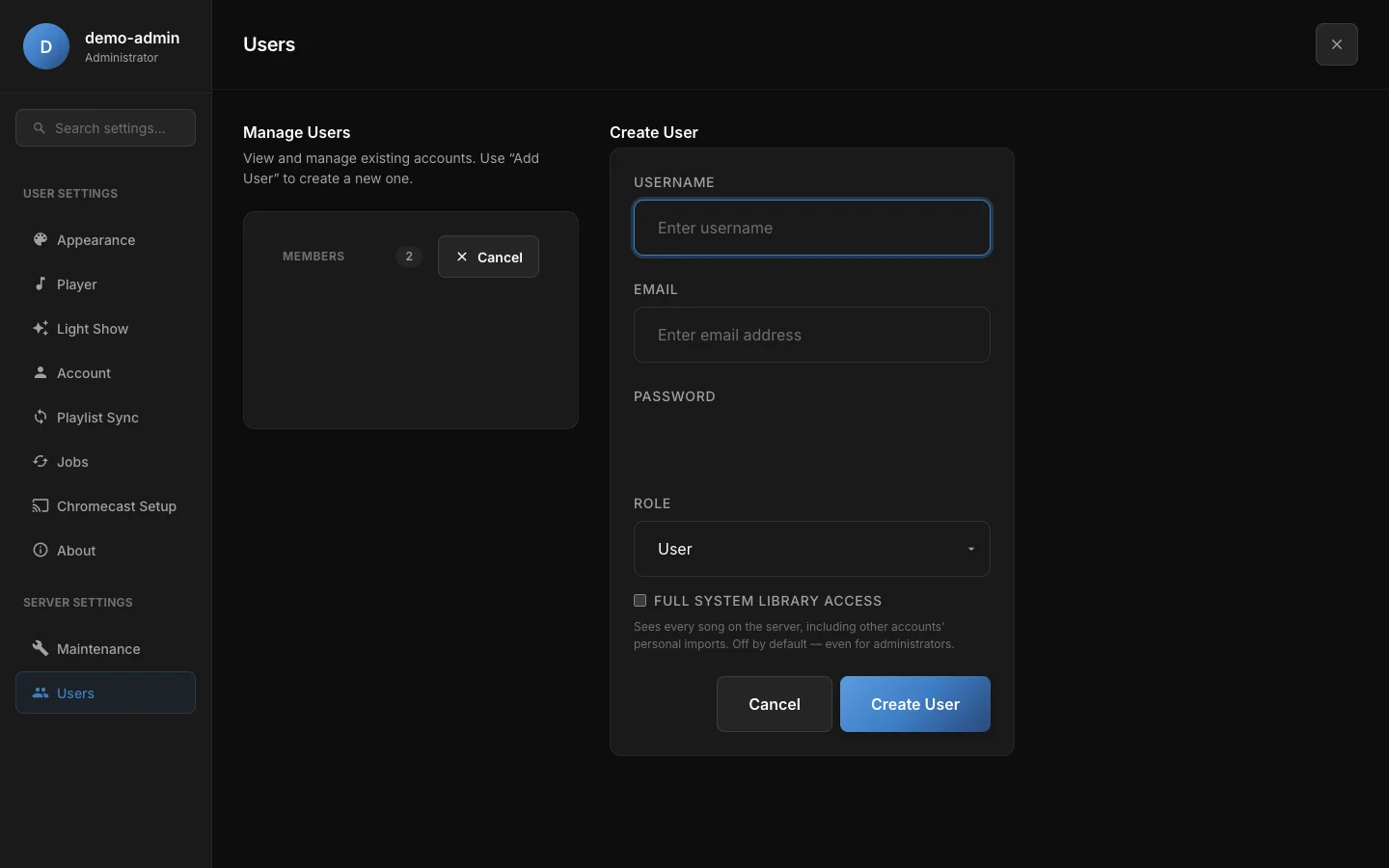
The Create User form. The password is hidden in this screenshot.
Manage a user
Each row has four buttons.
- Make administrator or Make user changes the role. Promoting an account gives it the scanned library. Demoting it removes the scanned library, but keeps its own imports and published songs.
- Full library access turns the full-library permission on or off.
- Reset password sets a new password for the account. It also signs that account out everywhere.
- Delete user removes the account.
Rainy won't let you:
- demote or delete the last administrator,
- delete your own account.
Deleting an account removes its playlists and its access to songs. The song files it imported stay on the server and in the library for anyone with full library access, but nobody else sees them.
Rainy records role changes, full library changes, password resets, account creation and deletion, and song publishing in its audit log.
Publish a song to everyone
Administrators can publish a song from its context menu. Open the song's menu and choose Publish to Everyone. The option is only shown to administrators. The song then appears in every account's library, including accounts created later.
Publishing can't be undone in Rainy. No button makes a published song private again.