
Documentation Build a light show
Create an environment
Write your own light show: a small JavaScript package that receives the music and decides what it looks like.
An environment is a package that anyone can write and any Rainy server can install. Rainy does the hard part: it analyses the song, keeps time with the audio, and hands your code a description of the music sixty times a second. Your code draws.
This page builds one from nothing. The Environment API reference lists everything you can use, and How the light show works explains where the data comes from.
Before you start
You need:
- A copy of the Rainy repository that you can run locally. See Install.
- A few analysed songs in its library.
- JavaScript. An environment is plain ES modules: no build step, no framework. Use a 2D canvas, WebGL, the DOM, or any library you carry inside the package.
Two environments in the repository are worth opening next to this page:
packages/example-pulse: about 130 lines on a 2D canvas. Everything on this page, in one file.packages/voyage: a full 3D environment with three.js, its own lyrics and an immersive layout.
Start Rainy in development mode
Start the server with a folder of unpacked packages:
RAINY_DEV=1 RAINY_ENVIRONMENTS_DEV=packages python app.py
Every folder in packages/ that holds a valid manifest now shows up as an environment, tagged Development, and is served straight from disk without caching. Change a file, reload the page, and your change is running. Folders that do not validate are reported on the server's console, with the reason.
Development mode is for your own machine. It also relaxes the session key requirement, so never use it on a server other people reach.
1. The manifest
Create packages/my-show/rainy-environment.json:
{
    "manifest": 1,
    "api": 1,
    "id": "my-show",
    "name": "My Show",
    "version": "0.1.0",
    "description": "One line for the picker",
    "author": "You",
    "entry": "index.js"
}
id is what identifies your environment on a server: lowercase letters, digits and hyphens. api is the version of the environment API you are writing for; today that is 1.
2. The smallest environment
Create packages/my-show/index.js. The module's default export is a class with four methods:
import { TAU, rgba } from '@rainy/lightshow';

export default class MyShow {
    // Rainy hands you ctx. Build what you need inside ctx.root, your own layer.
    mount(ctx) {
        this.canvas = document.createElement('canvas');
        this.canvas.style.cssText = 'display:block;width:100%;height:100%';
        ctx.root.appendChild(this.canvas);
        this.g = this.canvas.getContext('2d');
    }

    // Release what the page cannot. Rainy removes your layer itself.
    unmount() {}

    // Every frame, first: read the music, decide what happens.
    update(S) {}

    // Every frame, second: draw.
    render(S) {
        const { g, canvas } = this;
        if (canvas.width !== canvas.clientWidth || canvas.height !== canvas.clientHeight) {
            canvas.width = canvas.clientWidth;
            canvas.height = canvas.clientHeight;
        }
        g.fillStyle = rgba(S.palette.deep, 1);
        g.fillRect(0, 0, canvas.width, canvas.height);

        // A disc that jumps with the kick drum.
        g.fillStyle = rgba(S.palette.a, S.dim);
        g.beginPath();
        g.arc(canvas.width / 2, canvas.height / 2, canvas.height * (0.1 + 0.1 * S.pulse.k), 0, TAU);
        g.fill();
    }
}
Reload Rainy, open Settings > Light Show, pick My Show, play a song and turn the show on. The disc pumps with the kick, in the colour of the song's key.
@rainy/lightshow is the one module of Rainy's that a package imports. It has maths, colour and timing helpers. Everything else arrives through ctx and S.
3. Use the music
S is the state of the show for this frame. The parts you will reach for first:
S.t |
The song's time in seconds, in step with the audio. |
S.pulse.k, .s, .h |
Kick, snare and hi-hat, 0 to 1: they snap up on a hit and fade. |
S.F.bands |
Energy from 0 to 1 in sub, bass, mid, high and air, plus rms (loudness). |
S.F.newBeat, S.F.newBar |
True on the frame a beat or a bar starts. |
S.F.section.label |
intro, verse, build, chorus, drop, breakdown or outro. |
S.F.buildProgress, S.F.dropIn |
How far through a build the song is, and seconds until the next drop. |
S.palette |
Five colours for this section: a, b, c, a tinted white w, and a dark deep. |
S.I |
Intensity from 0.3 to 1: how hard the show should go. |
S.dim |
The master dimmer. Multiply your light by it. |
For example, a ring on every bar that expands and fades:
// in mount(): this.rings = [];

update(S) {
    if (S.F.jumped) this.rings = [];                       // the user seeked: start clean
    if (S.running && S.F.newBar) this.rings.push(S.t);     // remember when, in song time
    this.rings = this.rings.filter((born) => S.t - born < 2 && S.t >= born);
}

render(S) {
    // … after the background …
    const cx = canvas.width / 2, cy = canvas.height / 2;
    for (const born of this.rings) {
        const age = (S.t - born) / 2;                      // 0 when it starts, 1 when it is gone
        g.strokeStyle = rgba(S.palette.b, (1 - age) * S.dim);
        g.lineWidth = 3;
        g.beginPath();
        g.arc(cx, cy, canvas.height * (0.1 + 0.4 * age), 0, TAU);
        g.stroke();
    }
}
Note that the rings remember the song's time, not a frame count. That is the habit to build: compute what is on screen from S.t. A seek, a pause or a dropped frame then cannot leave your show out of step.
Look ahead
setScore(score) gives you the whole song at once: every beat, every drum hit, every section, and the energy of each band fifty times a second. That is how Voyage shows the music that is coming as the land ahead. Add the method to your class and keep the score:
setScore(score) {
    this.score = score;     // null while a song has no score yet
}
4. Flashes
Never strobe on your own. Ask the conductor, and draw what it allows:
update(S) {
    for (const ev of S.F.events) {
        if (ev.type === 'drop') S.flash(1, S.palette.w);
    }
}

render(S) {
    // … your scene …
    if (S.flashAmt > 0.01) {
        g.fillStyle = rgba(S.flashColor, 0.6 * S.flashAmt);
        g.fillRect(0, 0, canvas.width, canvas.height);
    }
}
The conductor limits flashes to three a second and turns them into soft pulses when the user has Reduce Flashing on. That limit protects people with photosensitive epilepsy. It only works if every environment draws S.flashAmt instead of deciding for itself.
5. Lyrics
When the user has lyrics on stage, S.lyricsOn is true and S.lyrics tells you what is sung when. How it looks is yours to decide:
update(S) {
    let text = '';
    if (S.lyricsOn) {
        const i = S.lyrics.lineIndex(S.t);
        const line = i >= 0 ? S.lyrics.lines[i] : null;
        if (line && !line.blank) {
            // Each word has a start (s) and an end (e), in song time.
            text = line.words.filter((w) => S.t >= w.s).map((w) => w.text).join(' ');
        }
    }
    this.lineEl.textContent = text;
}
Keep text clear of the player's controls: ctx.ui.safeArea() says how much of each side of the stage they cover.
6. Layout and buttons
Add any of these to the manifest:
{
    "layout": "immersive",
    "requires": ["webgl2"]
}
layoutisstage(the default: the player as it is, your show behind it) orimmersive(your show is the whole picture, and the song becomes a small card).requireslists what the device must have:webgl,webgl2orwebgpu. On a device without it, your environment cannot be picked.
For a control of your own, add a button to the show's bar:
this.button = ctx.ui.addButton({
    icon: '<svg viewBox="0 0 24 24" width="14" height="14">…</svg>',
    title: 'More rings',
    onClick: () => { this.many = !this.many; this.button.setPressed(this.many); },
});
7. Restyle the player
Your environment can change how the fullscreen player itself looks: its colours, its sizes, what is shown and what is hidden. You do that with a stylesheet, not with JavaScript. Create packages/my-show/style.css and name it in the manifest:
{
    "styles": ["style.css"]
}
Rainy loads the stylesheet when your environment goes on stage and removes it when it leaves, so nothing you write outlives your show.
While you are on stage, the player has the class ls-env-my-show (ls-env- and your id). Start every rule with it. The song's palette is there as CSS variables, so the player can take the colours of the music:
/* The progress bar and the play button take the colours of the song. */
#fullscreen-player.ls-env-my-show .fs-progress-fill {
    background-color: rgb(var(--ls-a));
}

#fullscreen-player.ls-env-my-show .fs-control-btn.play-pause {
    background-color: rgb(var(--ls-w));
}

/* A glow around the artwork, in the second colour, at half strength. */
#fullscreen-player.ls-env-my-show .fs-artwork-container {
    box-shadow: 0 0 70px rgb(var(--ls-b) / 0.55);
}

/* Hide the Rainy mark while this show is on. */
#fullscreen-player.ls-env-my-show .fs-brand {
    display: none;
}
--ls-a, --ls-b and --ls-c are the section's three colours, --ls-w is a tinted white and --ls-deep a dark tone. Each holds r g b, so write rgb(var(--ls-a)), or rgb(var(--ls-a) / 0.5) for half transparent. They glide to the next section's colours as the song moves on.
The player also tells you what state it is in, with classes you can combine with yours: ls-idle while an immersive layout is dimmed, mode-standard or mode-modern for the fullscreen mode the user chose, ls-lowpower for Low Performance Mode. The full list of classes, parts and variables is in Styling the player.
Three limits:
- Stay inside the fullscreen player. Your rules should not match anything outside
#fullscreen-player.ls-env-my-show. - Leave people a way out. Do not hide or cover the close button or the light show button, and keep the playback controls usable.
- CSS gets the palette, not the beat. Anything that moves with the music belongs in your layer.
8. A picture
People choose an environment by its picture. Save a frame of your show as a 16:9 image (960 × 540 is plenty) and name it in the manifest:
{
    "preview": "preview.jpg"
}
Leave a song's cover art and lyrics out of it, unless they are yours to publish.
9. Pack and install
python scripts/pack_environment.py packages/my-show
This checks the folder exactly as a server checks an upload and writes dist/my-show-0.1.0.zip. Hidden files and a tests/ folder are left out. That zip is your environment: share it, and an administrator installs it under Settings > Light Show > Installed Environments. See Install an environment.
To release a new version, raise version in the manifest and pack again. Installing it over the old one updates it.
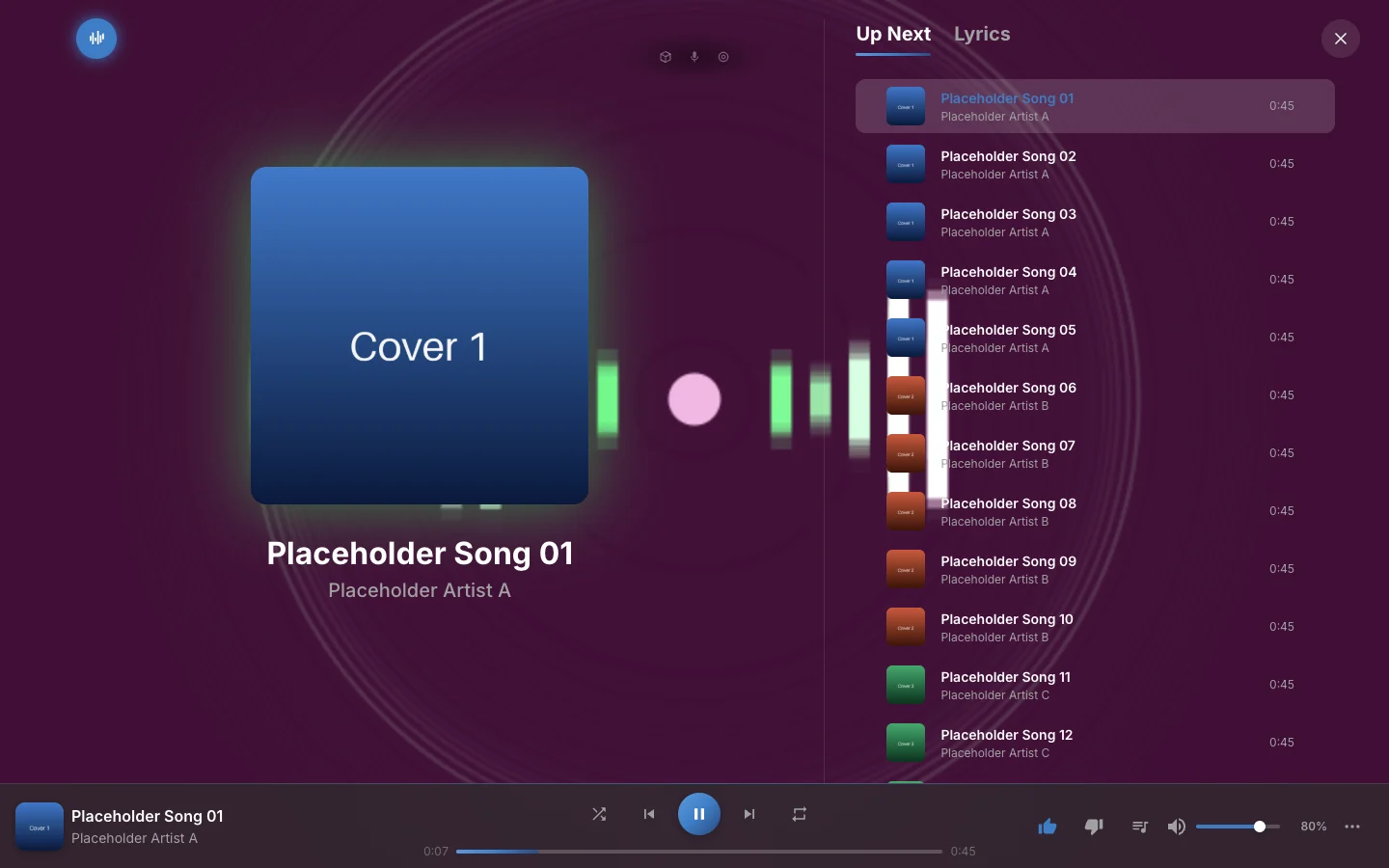
Pulse, the example in packages/example-pulse, as a stage environment: it draws behind the player, and its stylesheet tints the player with the colours of the song; here, the glow around the artwork.
Rules of the house
- Flashes go through the conductor. Call
S.flashand drawS.flashAmt. - Respect the user's settings.
S.prefs.reduceFlashingalso means no camera shake or sudden motion. HonourS.prefs.disableLasers,S.prefs.lowPowerand the qualitytierpassed toresize. - Be a function of the song's time. Compute from
S.tand the score instead of piling up state frame by frame. - Stay inside
ctx. Draw inctx.rootand talk to Rainy throughctxand@rainy/lightshow. Do not reach for the page's other elements or Rainy's API: that is what keeps your package working when Rainy changes, and what will let Rainy run packages isolated in the future. - Carry your libraries. Put what you import inside the package. Do not load code from other servers.
- Fail loudly. If you cannot go on, for example after a lost WebGL context, call
ctx.fail(error). Rainy falls back to Classic and the show continues.
If your code throws, Rainy does the same: it takes the environment off stage, removes what it added and switches to Classic. The error is in the browser's console.