
Documentation Library
Albums and artists
Browse your music by album or by artist, and fill in artist profiles.
Albums and Artists sit under Browse in the sidebar. Both views are built from the songs in your library, so they only show music your account can hear. An album or artist you do not have any songs for will not appear.
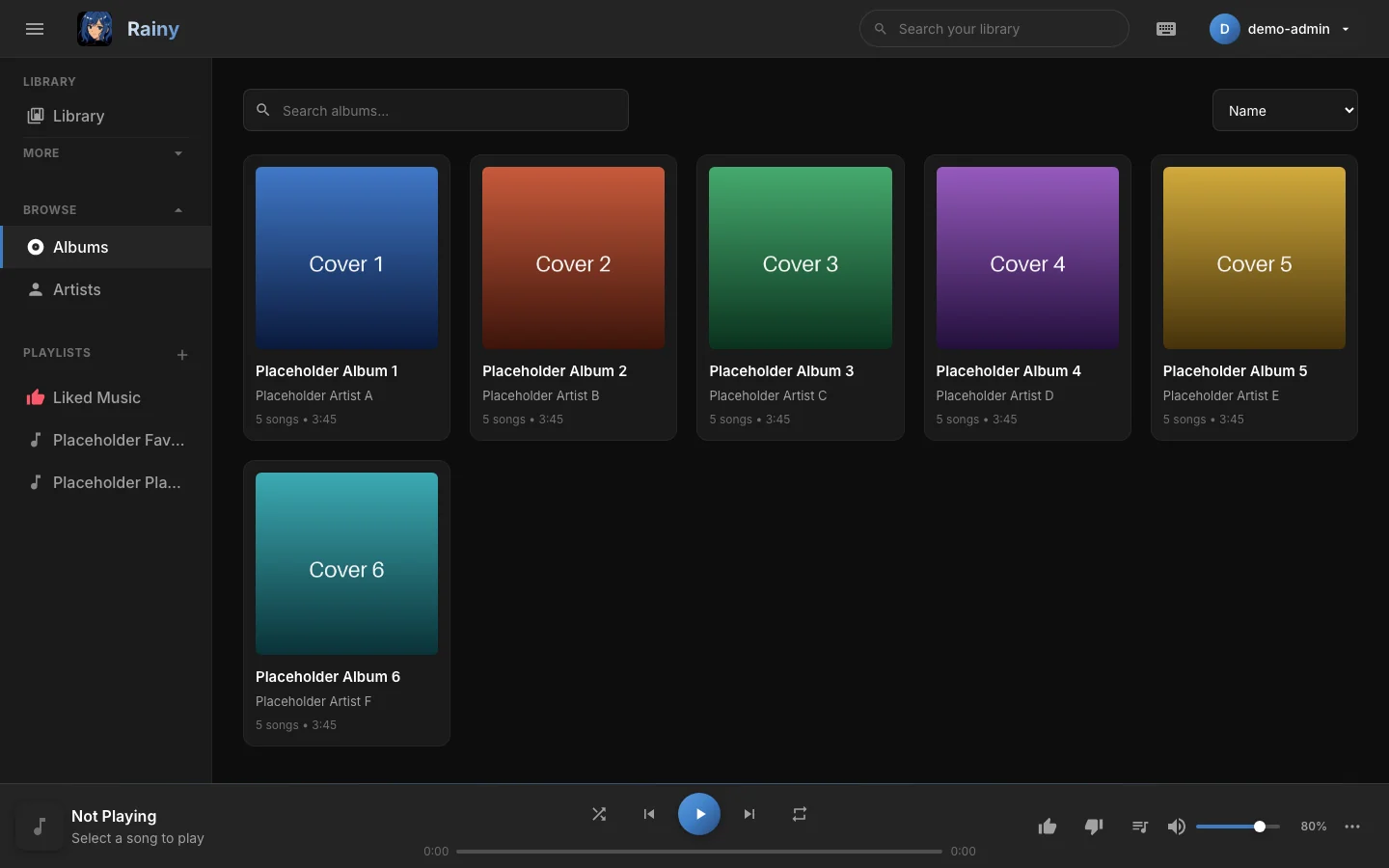
The Albums grid. Each card shows the cover, title, artist and song count.
Browse albums
- Click Albums under Browse in the sidebar.
- Type in the search box to filter by album or artist name.
- Open the sort menu and choose how to order the albums.
| Sort | Order |
|---|---|
| Name | Album title, A to Z. This is the default. |
| Artist | Artist name, then album title. |
| Year | Newest year first. |
Albums are grouped by title alone. Two different albums that share a title, even by different artists, appear as one card. Its artist line lists every artist, separated by commas.
Open an album
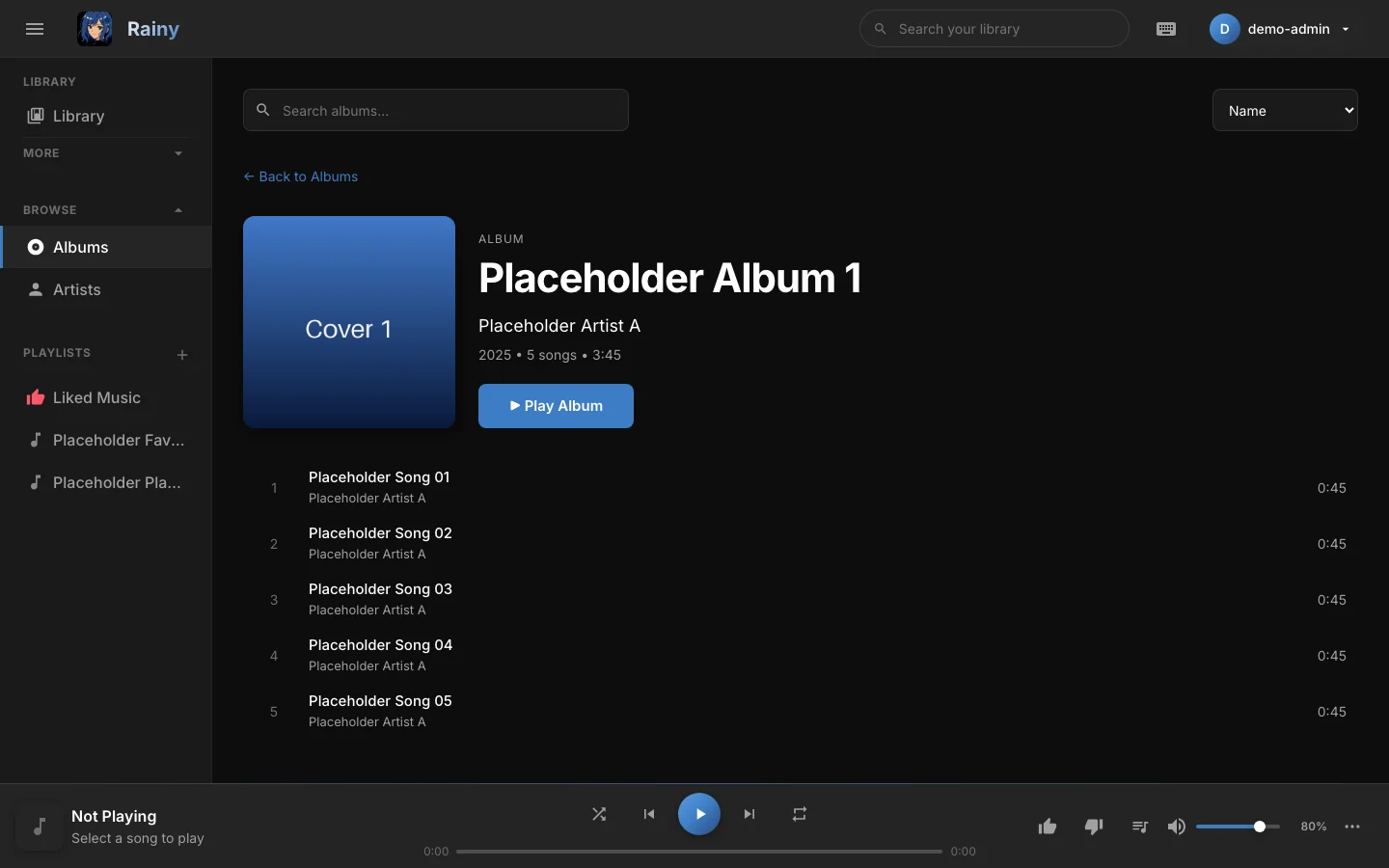
An album page with its track list. Click any track to start playing from there.
- Click an album card to open it.
- Read the header for the year, song count and total length.
- Click Play Album to start from track one, or click a track to start from that track.
- Click Back to Albums to return to the grid.
Tracks are listed by track number, then by title. Songs without an album tag do not appear in the Albums view.
Browse artists
- Click Artists under Browse in the sidebar.
- Find an artist by name using the search box.
- Click an artist circle to open the artist profile.
Rainy splits songs that credit several artists, such as "Placeholder Artist A, Placeholder Artist B", so each artist gets its own circle. Capital letters are ignored when grouping, so "placeholder artist a" and "Placeholder Artist A" become one artist. The most common spelling is the one shown.
Read an artist profile
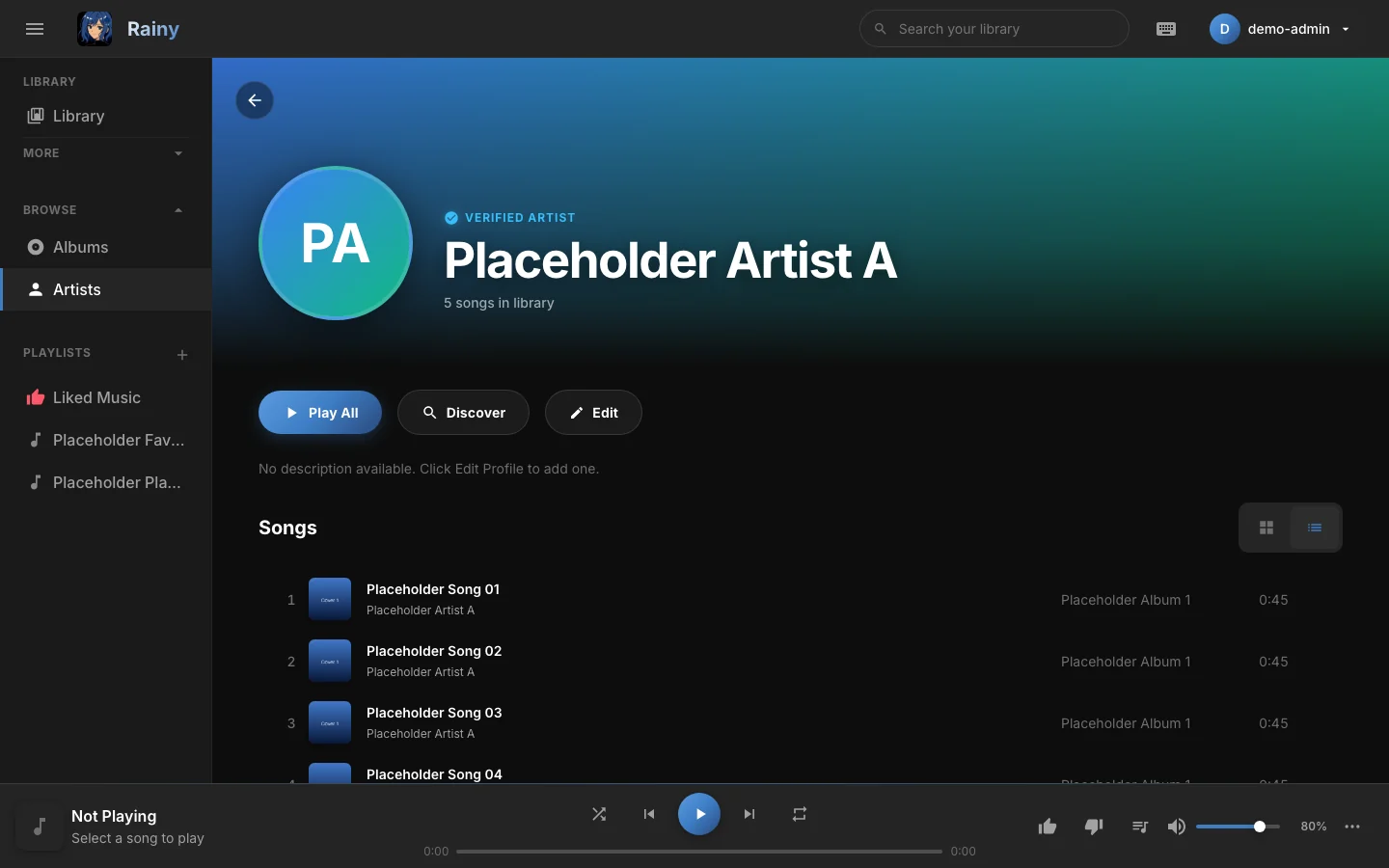
An artist profile. The header shows the avatar, bio, Discover and Edit buttons, and the songs below.
The header shows the artist's avatar. If no image has been set, the avatar shows the artist's initials on a coloured background. Below it is the bio, if one has been written.
Two buttons sit next to the name:
- Discover opens Discover Music and searches for the artist.
- Edit opens the profile editor described below.
The songs section lists the artist's songs. Use the grid and list icons to switch how they are shown.
Edit an artist profile
You can edit an artist if you are an administrator, or if at least one song by that artist is in your library. Otherwise Rainy reports that the artist was not found in your library.
Profiles are shared. An edit you save is seen by every account.
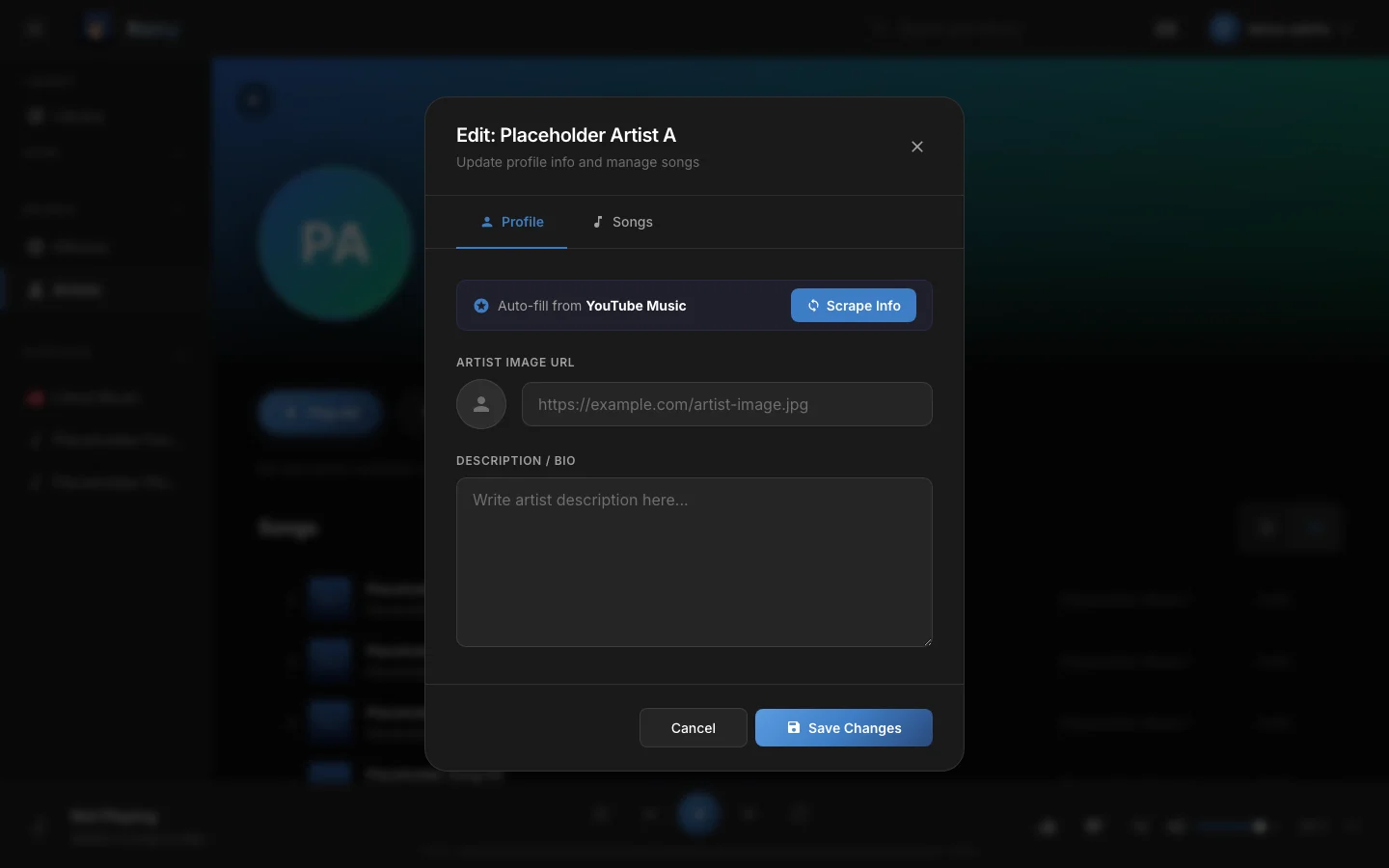
The profile editor. Scrape Info fills in the form, and Save Changes stores it.
Profile tab
- Open an artist profile and click Edit.
- Optional: click Scrape Info. Rainy searches YouTube Music for the artist and fills in the bio and image. If it finds several matches, pick the right one from the list.
- Check or type the Artist Image URL. It must start with
http://orhttps://. Each visitor's browser loads the image from that address. - Edit the Description / Bio text.
- Click Save Changes.
Scraped results only fill in the form. Nothing is saved until you click Save Changes.
Songs tab
The Songs tab lists every song you can see. Songs credited to this artist are switched on.
- Open the Songs tab in the editor.
- Use the search box to find a song by title or album.
- Switch an artist credit on or off for a song.
Each switch saves straight away. It changes the song's artist field, which every account shares, so the change shows everywhere. If you remove the last artist from a song, Rainy sets its artist to Unknown Artist.
Switching an artist off on a song removes that artist from the song for every account, not just yours.
Fill in artist info for everyone
Administrators can fill in missing artist information for the whole library from Settings, under Maintenance:
- Scrape Artist Images looks for an image for each artist that does not have one.
- Scrape Artist Descriptions looks for a bio for each artist that does not have one.
These tasks only fill in gaps. They do not replace bios or images you have already set. See Maintenance.